Project Pulse asks everyone working on the project one short, recurring question in the mobile app, and tracks the answers per team over time on the Dashboard.
Worksite mood tends to move before the schedule does. A team trending downward is an early signal — overloaded, demotivated, or losing confidence in the plan — while there is still time to do something about it. The per-team trend also makes a good opening for a huddle: bring up a dip and ask what’s behind it.
Getting there
Open a project → Settings → Features → Team pulse
The feature is off by default. The toggle may be marked with a gem if it isn’t part of your plan, or Unlocked for you if it has been switched on for you anyway. Only managers can change it.
Turning it on
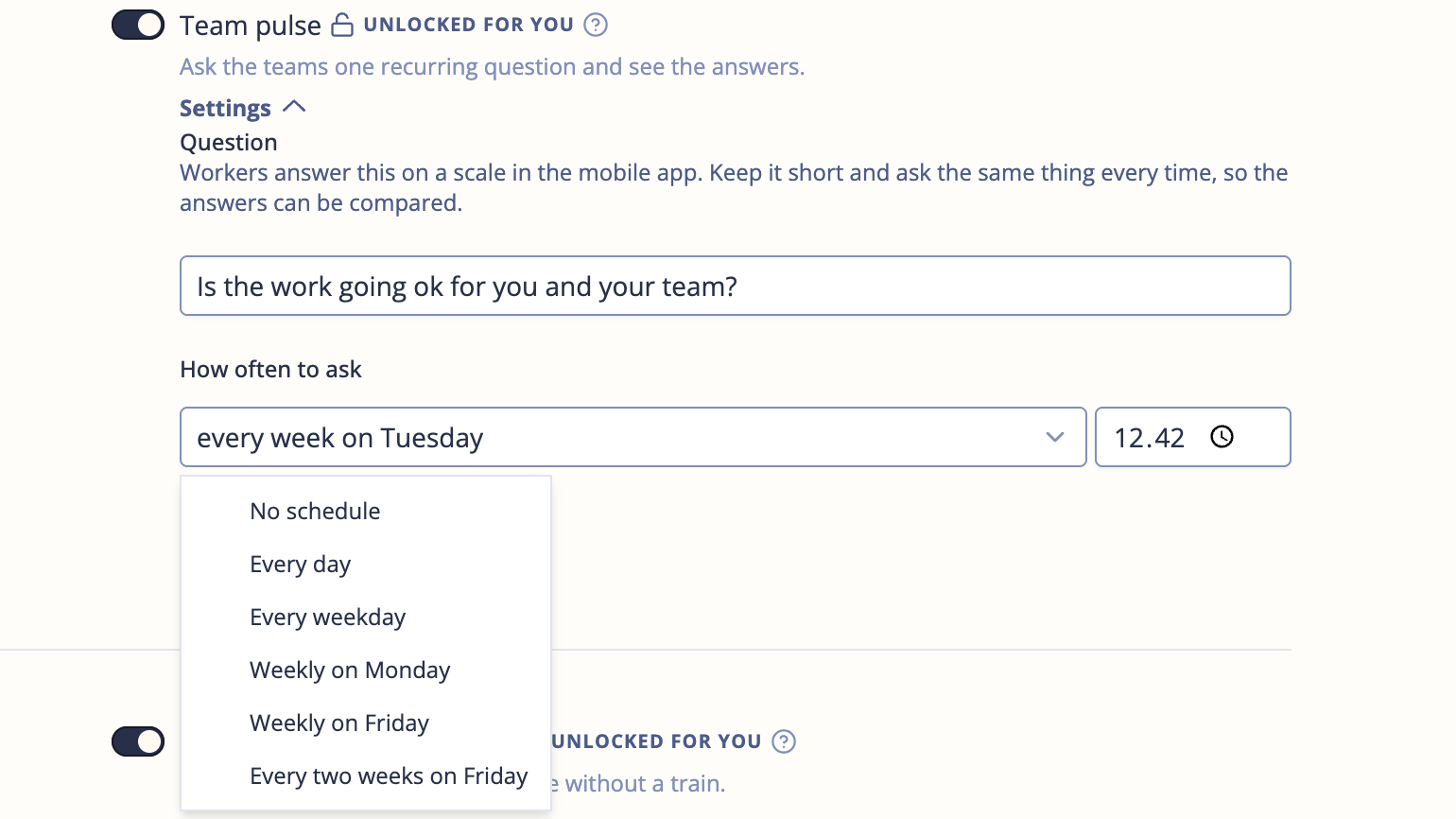
Switch on Team pulse, then open Settings under the toggle to configure it.
| Setting | Description |
|---|---|
| Question | The one question workers answer — for example How did the week go on site?. Leave it empty and workers are still asked, using the default question How is the time schedule working on the site? |
| How often to ask | When to ask, plus the time of day. |
The schedule is what actually starts the asking. With the toggle on but How often to ask left at No schedule, nobody is ever asked and the Dashboard section stays empty.
Choosing a schedule
Pick from a fixed list:
| Option | When workers are asked |
|---|---|
| No schedule | Never — the feature is effectively off |
| Every day | Every day, including weekends |
| Every weekday | Monday to Friday |
| Weekly on Monday | Every Monday |
| Weekly on Friday | Every Friday |
| Every two weeks on Monday | Every other Monday |
| Every two weeks on Friday | Every other Friday |
| Monthly on the 1st | First of each month |
Weekly on Friday, late afternoon, is a common choice — it asks about the week just finished while it’s still fresh. Asking daily produces more data but tends to lower response rates, and the weekly heatmap averages it back down anyway.
Writing the question
Keep it short, and ask the same thing every time. The value is in the trend, and a question that changes wording mid-project makes weeks impossible to compare.
Ask about how the work feels, not about facts you already track. How did the week go on site? works; Did you finish apartment B14? does not — the schedule already knows that.
What workers see
On each scheduled date, the question appears at the top of My Tasks in the Toolbelt app for everyone on the project. There is no role filter — team leads and workers are asked alike.
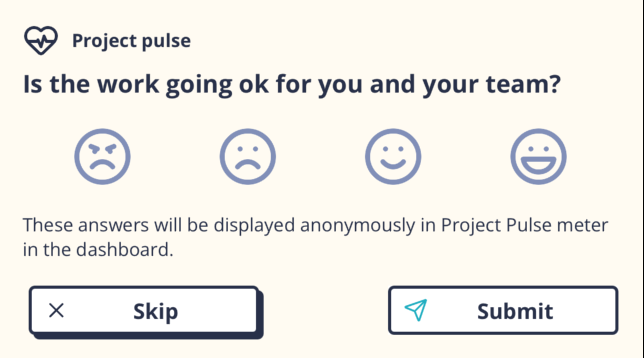
Workers tap one of four faces and tap Submit, or tap Skip. Skipping is not held against anyone — the app simply asks again on the next scheduled date.
Each face carries a score, which is what the Dashboard averages:
| Face | Score |
|---|---|
| Angry | 0 |
| Unhappy | 25 |
| Happy | 75 |
| Very happy | 100 |
There is no neutral middle answer on purpose — the scale asks people to lean one way or the other.
Reading the results
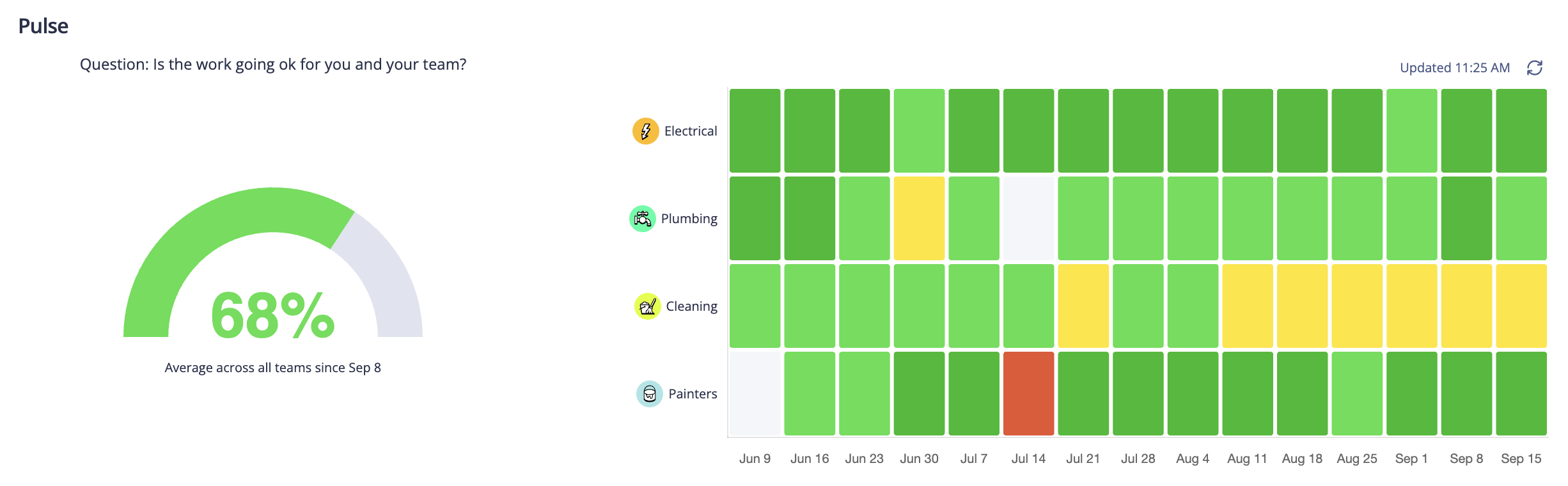
The Pulse section on the Dashboard shows two views side by side, with the question itself above them so everyone reading the dashboard sees exactly what was asked.
The gauge is the average answer as a percentage, 0–100%. It covers only the answers given since the most recent scheduled ask — which is why it reads Average across all teams since Sep 8. If nobody has answered since, it shows a dash.
The heatmap is one row per team, one column per week, coloured from red (low) through yellow to green (high). A blank cell means that team gave no answers that week. Hover a cell for the team’s average.
Read the heatmap across, not down. One dark week for a team is noise; three in a row is a conversation. A row that fades from green to yellow over a month is the signal this feature exists to give you.
Anonymity
Individual answers are never attributed to a person, and nothing in the app shows who answered what.
They are not anonymous per team, though — that is the whole point of the heatmap. Keep this in mind on very small teams, where a single low answer is effectively identifiable. If your teams are one or two people, say so openly rather than implying a privacy the layout can’t deliver.
Tips
- Set the schedule at the same time as the toggle — the feature does nothing while it’s on No schedule.
- Tell teams what the question is for before the first one lands. An unexplained survey gets skipped.
- Bring the heatmap to the weekly huddle. Acting on a dip, visibly, is what keeps answer rates up over a long project.
- Don’t change the question mid-project unless you’re willing to lose comparability with earlier weeks.