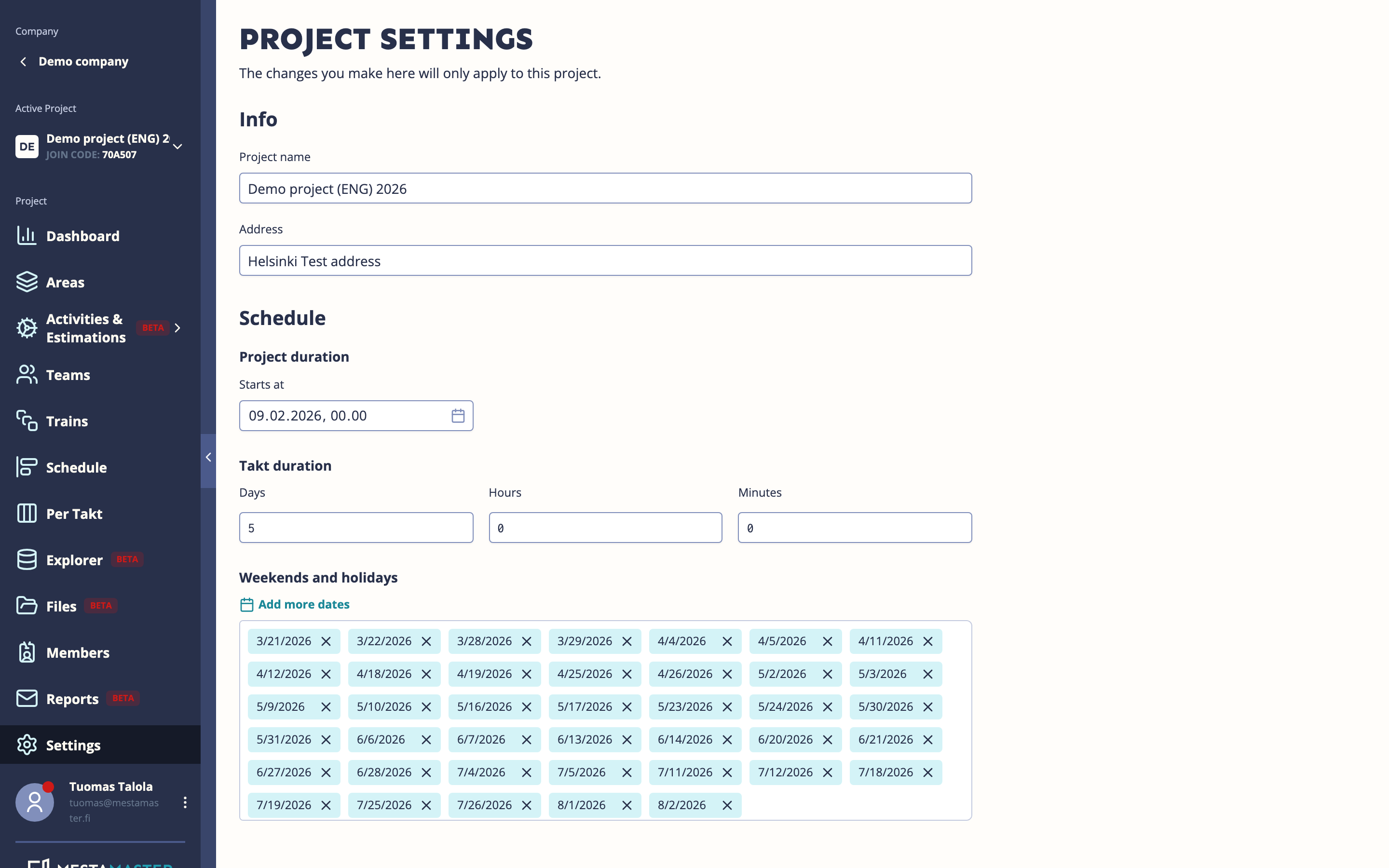
Project Settings contains the core configuration for your project — dates, takt duration, and which optional features are active. Most of these should be set when the project is created and rarely changed afterwards.
Getting there
Open a project → Settings
Info
| Field | Description |
|---|---|
| Project name | The display name shown across the app (minimum 2 characters) |
| Address | The physical address of the project site |
Schedule configuration
| Field | Description |
|---|---|
| Start date | When the project begins — the first takt starts on this date |
| End date | When the project is planned to finish |
| Takt duration | How long each takt is: week (5 days), half week (2,5 days), or daily |
| Weekends | Select which days are work-free (excluded from scheduling calculations) |
| Holidays | Add specific dates that are excluded from the schedule (public holidays, site shutdowns) |
The takt duration is the most important setting in this section — it determines the rhythm of the entire project. Set it before building your schedule and avoid changing it mid-project.
Features
Turn parts of Mestamaster on or off for this project. Changes save right away.
| Feature | What it controls |
|---|---|
| Photo and file comments | Lets workers attach photos and files to a task’s comments in the mobile app. |
| Task verification | Adds a review step: a completed task waits for a manager to accept it before it counts as done. |
| Task warnings | Shows warning badges on tasks that are late or haven’t been started on time. |
| Multi-dimension takt schedule | Lets the project be planned along more than one breakdown of the site — for example takt areas and physical rooms. |
| Estimations | Adds quantities and work estimates to activities and areas, and the flow lines that build on them. |
| Gantt chart | Adds the Gantt view, sketch planning, dependencies, and zoom from hours to months. |
| Resourcing matrix | Adds the Matrix view for planning team capacity per takt and spotting over-booking. |
| Tasks outside the takt plan | Lets you draw single tasks onto the Takt Schedule without adding them to a train. |
| Plans | Adds the Plans view for floor plans and drawings, and marking areas on them. |
| Project files | Adds the Files view, a shared place for the project’s documents. |
| Team pulse | Asks the teams one recurring question in the mobile app and shows the answers on the Dashboard. |
| NFC area tags | Lets you register an NFC tag to an area and open that area in the mobile app by tapping the tag on site. |
| AI assistant | Adds the AI chat panel, which answers questions about this project’s schedule, areas, teams and tasks. |
| MCP server | Exposes this project over the Model Context Protocol so an outside AI agent can read and act on it. |
| Payment installments | Adds contractors and the payment installment table. Requires Task verification. |
Turning a feature off hides it from the project navigation — it doesn’t delete any data, and you can turn it back on at any time.
Features marked with a gem aren’t included in your plan. One badged Unlocked for you is on for this project even though the plan doesn’t include it. Only managers can change these settings, and nothing here can be changed on an archived project.
Some features depend on another one: turning on Payment installments prompts you to enable Task verification too.
Team pulse settings
Team pulse asks everyone on the project one recurring question and tracks the answers per team over time. Switch it on here, then open Settings under the toggle to set the Question and How often to ask.
The schedule is what actually starts the asking — with the toggle on but How often to ask left at No schedule, nobody is ever asked.
Full setup, the answer scale, and how to read the results: see Project Pulse.
Tips
- Set the start date, end date, and takt duration before creating any templates or schedule — changing the takt duration after trains have been placed requires re-planning the whole schedule.
- Add public holidays for your country at the start — they affect how task due dates are calculated.
- Turn on Estimations only if you plan to use it — it adds two sections to the navigation that may confuse users who don’t need them.
- If you turn on Team pulse, set How often to ask straight away — the feature does nothing while the schedule is No schedule.