Okkim is Mestamaster’s AI assistant. It understands your project’s data — spaces, activities, teams, schedules — and can help you with planning, analysis, and routine setup tasks through a conversational chat interface.
Getting there
Click the Mestamaster AI icon on the bottom right on any project page. The chat panel opens on the right side of the screen.
What Okkim can do
Okkim has direct access to your project data and can both answer questions and take actions:
Answering questions
- “Which teams are overloaded next week?”
- “How many tasks are late on Floor 3?”
- “What’s the current pulse score?”
Taking actions
- Create spaces, activities, and teams
- Update task details
- Import data structures
All actions require confirmation before they run (see Plan Mode below).
Chatting with Okkim
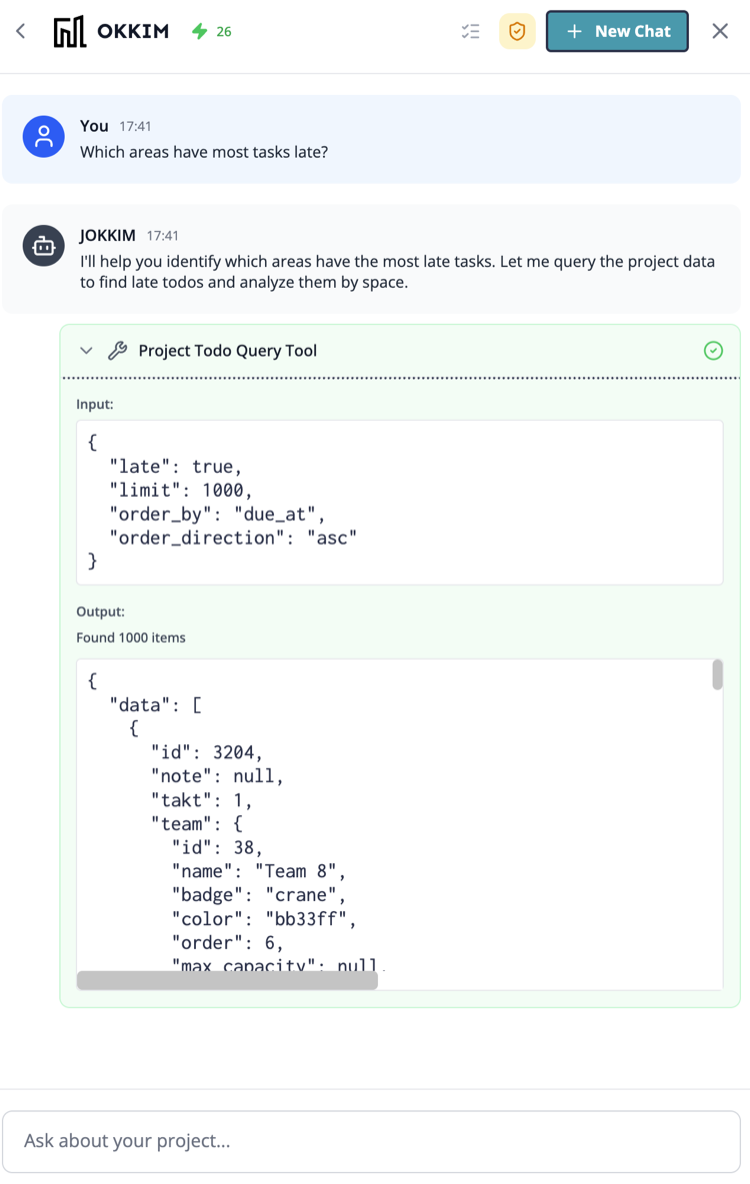
Type your message in the input field and press Enter. Okkim responds with text, data summaries, or a plan for approval.
To start a fresh conversation, click New chat. Previous conversations are saved — click any past session in the sidebar to resume it.
Plan Mode
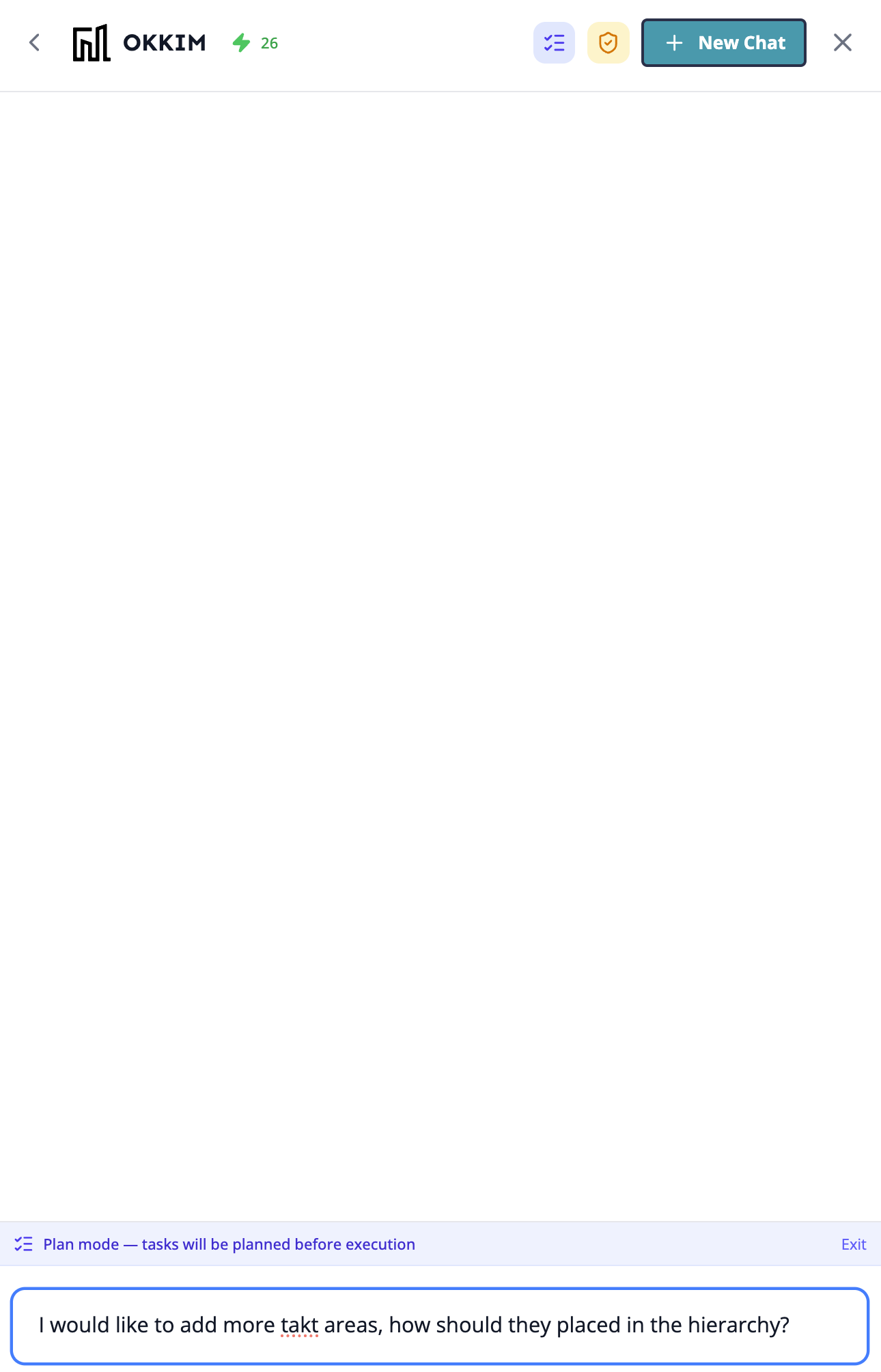
For multi-step operations, Okkim proposes a plan before doing anything:
- Okkim outlines the steps it will take (e.g. “Step 1: Create 3 activities. Step 2: Assign them to teams. Step 3: Update the schedule.”)
- You review the plan and click Approve to proceed or Cancel to abort
- Okkim executes each step in order
If a step fails, Okkim pauses and explains what happened. You can ask it to retry or adjust the plan.
Auto-advance
Toggle Auto-advance on a plan card to let Okkim proceed through all steps automatically once you approve the first one. Turn this off if you want to review the result after each step.
Tool approval
Each action Okkim takes (creating a space, updating a task, etc.) is called a “tool call.” By default, Okkim shows you each tool call before executing it and waits for your confirmation.
Click the shield icon in the toolbar to toggle between:
- Manual approval (amber shield) — you confirm each tool call individually
- Auto-execute — Okkim runs tool calls without waiting for confirmation
For routine, low-risk operations you can use auto-execute. For significant changes to the project structure, manual approval gives you a safety check.
Slash commands
Type / in the chat input to see a list of pre-built prompt templates for common tasks. These give Okkim the right context to complete structured tasks efficiently.
Status indicators
The toolbar shows two connection indicators:
| Indicator | What it means |
|---|---|
| Green bolt | Project tools are connected — Okkim can read and write project data |
| Green box | Building model (IFC) is connected — Okkim can reference the 3D model |
If an indicator is grey, that data source is not available in the current context.
Tips
- Start with questions before giving commands — ask Okkim to summarize a situation, then ask it to take action based on that summary.
- Use Plan Mode for anything that touches multiple parts of the project — it prevents partial updates if something goes wrong midway.
- Okkim’s knowledge of your project is based on live data. If you just made changes, give it a moment to reflect them before asking about them.
- Conversations are project-specific — switching projects starts a fresh context.