This guide covers the day-to-day workflow for a foreman or site manager. You’re not setting up the project from scratch — a planner has done that — but you’re responsible for running it on the ground: keeping tasks moving, handling problems, and making sure quality holds.
You’ll use both the web app (for meetings and overview) and the Toolbelt mobile app (for on-site work).
Get access to the project
You’ll receive an invitation by email or SMS. Click the link to create your account and join the project.
If you don’t have an invitation, ask the project planner to invite you as Editor — you’ll need Editor level to manage tasks, run the schedule, and review completed work.
Alternatively, open the Toolbelt app, tap Request access to project, enter the join code the planner gives you, and wait for approval.
Understand the project at a glance — Dashboard
Open the project → Dashboard.
Before your first site visit or meeting, scan the dashboard to understand the current state:
- KPI cards at the top — how many tasks are late, in progress, or completed early
- Deviation (distance) from plan — is the project ahead or behind overall?
- Interruption history by reason — what’s been blocking work most often?
- Team Current Locations — which teams are active and where?
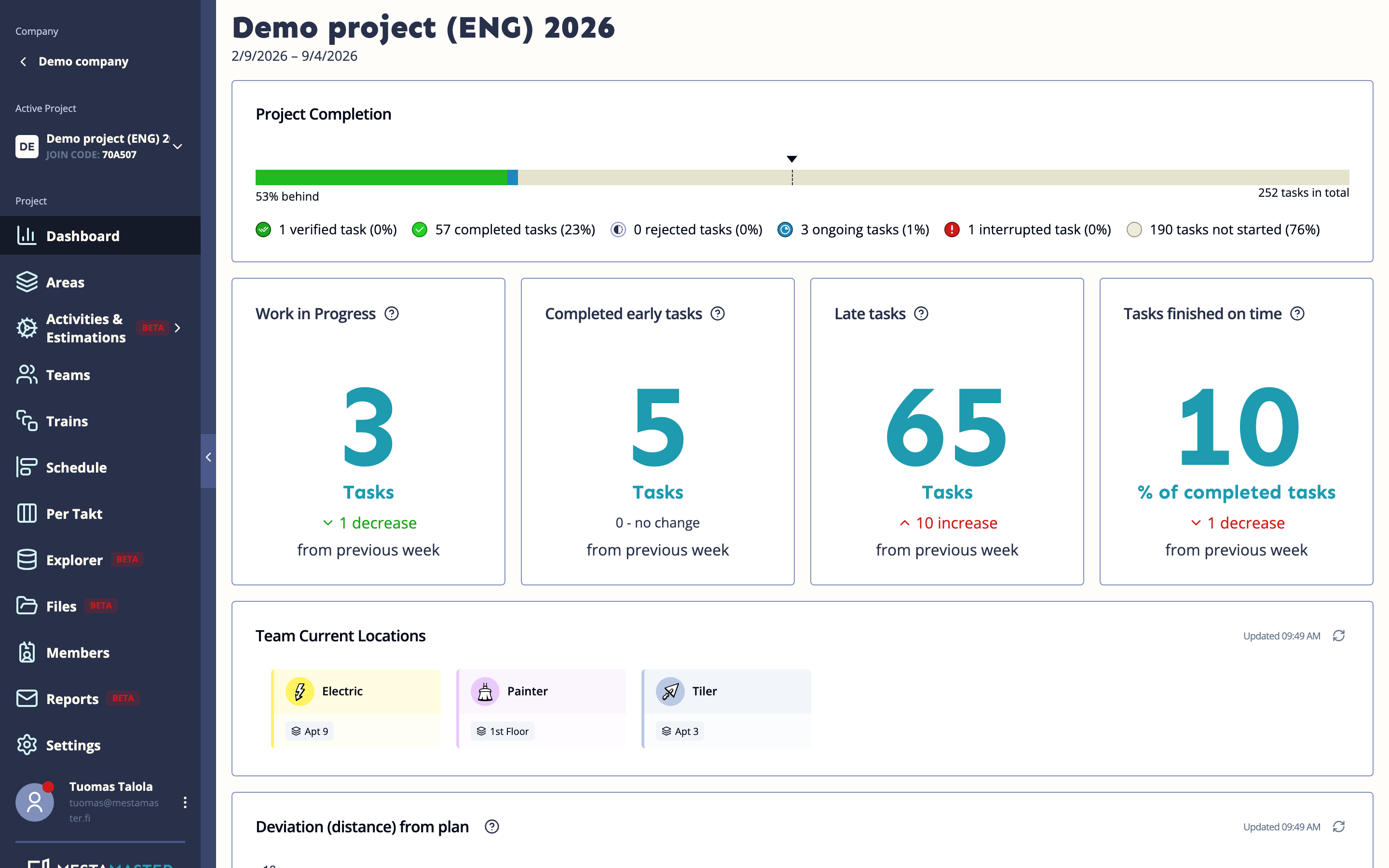
You don’t need to read every chart in detail every day. Focus on late tasks and interruptions — those are your immediate action items.
→ See Dashboard
Run the weekly huddle — Per Takt
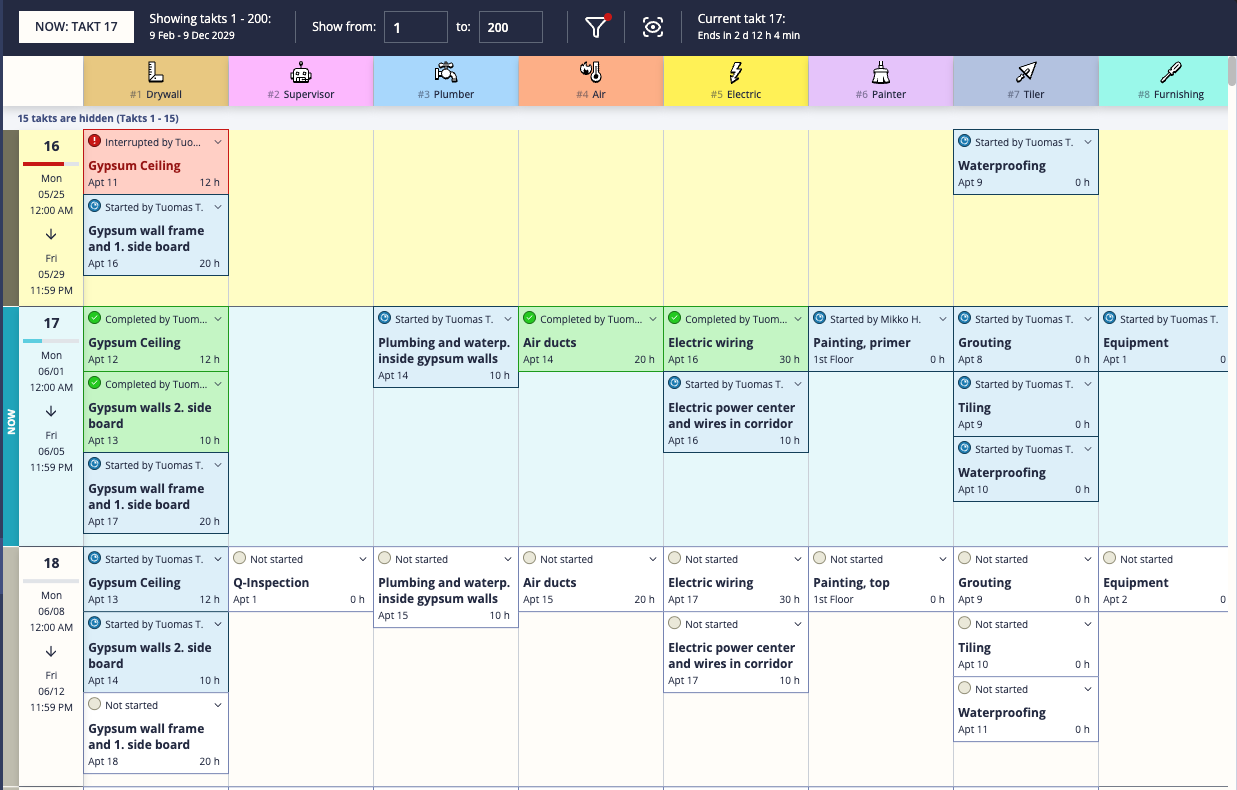
Per Takt is the view designed for team meetings. Open it on a projector or shared screen and walk through it together.
Before the meeting
- Go to Per Takt
- Enable Hide past completed takts — this hides finished history and focuses on current and upcoming work
- Use Scroll to current takt to jump to the right place
During the meeting
Walk through the current takt row by row:
- Tasks still Not started that should have started — find out why
- Tasks Interrupted — review the reason, decide how to resolve
- Tasks Completed — confirm quality, trigger verification if applicable
Click any task to open the sidebar. You can update status directly from here:
- Mark tasks as started or completed on behalf of a worker
- Record interruptions with a reason
- Verify or reject completed tasks
After the meeting
Tasks that couldn’t be resolved should become action items. Use Explorer to track them.
→ See Per Takt
Handle interruptions
When a task can’t proceed, it needs to be interrupted — either by the worker on mobile or by you in the web app.
To interrupt a task:
- Open the task sidebar (from Per Takt, Schedule, or Explorer)
- Click Interrupt
- Select the reason: Materials, Plans, Equipments, Supplies, Space not available, Space not clean, Previous todo, or Other
- Add a comment explaining the situation
The interruption is logged on the Dashboard and visible to the whole project team.
To resolve an interruption once the blocker is cleared:
- Find the interrupted task in Per Takt or Explorer
- Click Continue to resume the task
If the task can no longer happen at all, use Skip instead.
→ See Explorer
Review completed work — Task Review
If your project uses the quality verification workflow, completed tasks need sign-off before they count as done.
On mobile:
- Open the Toolbelt app → Review tab
- Tasks waiting for your approval appear under Ready
- Tap a task to open its detail — check the work, read any comments
- Tap Verify to approve or Reject to send back for rework
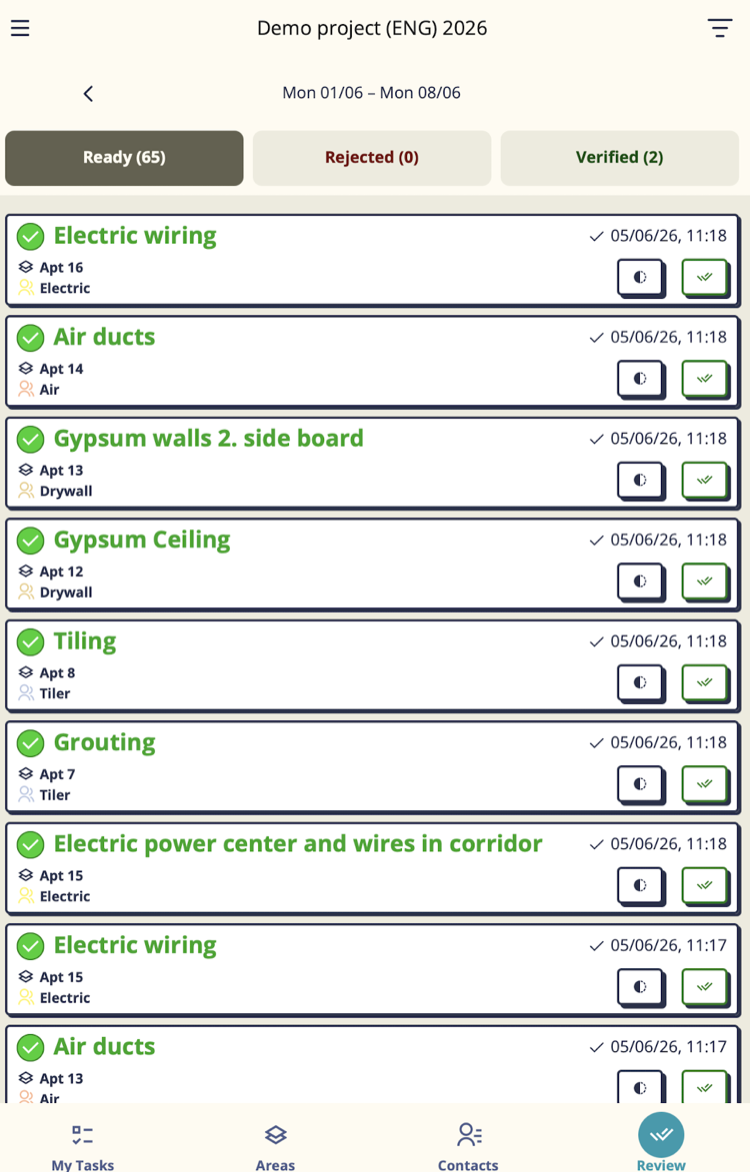
When you reject a task, always add a comment explaining what needs to be fixed — the worker needs to know what to correct.
Tip: Use Group by Teams in the filter panel to structure the review by trade, especially useful when meeting with individual subcontractors.
→ See Mobile: Task Review
Investigate specific problems — Explorer
When you need to dig into something specific — all overdue tasks for one team, every unresolved interruption this month, a particular task’s history — use Explorer.
Explorer → Todos tab: filter and sort to find exactly what you’re looking for. Click any row to open the task sidebar.
Explorer → Interruptions tab: full log of all interruptions with their reasons, resolution times, and comments. Useful for weekly subcontractor review meetings.
→ See Explorer
Manage your team
Teams → click your team to open the sidebar.
From here you can:
- Add or remove members
- Invite new workers by phone number (no email needed)
- Check the Workload per Takt chart to see if your team is over-allocated in any period
→ See Teams
Your daily rhythm
| When | What to do |
|---|---|
| Morning | Check Dashboard — any new late tasks or unresolved interruptions overnight? |
| During site rounds | Use the Toolbelt app to update tasks in real time as you walk the site |
| Weekly meeting | Open Per Takt with the team and walk through the current takt |
| When work is blocked | Record the interruption immediately with a specific reason |
| After completed work | Review and verify (or reject) in the Task Review screen |
→ See also: Quick Start: Worker to understand what your workers see on their phones.