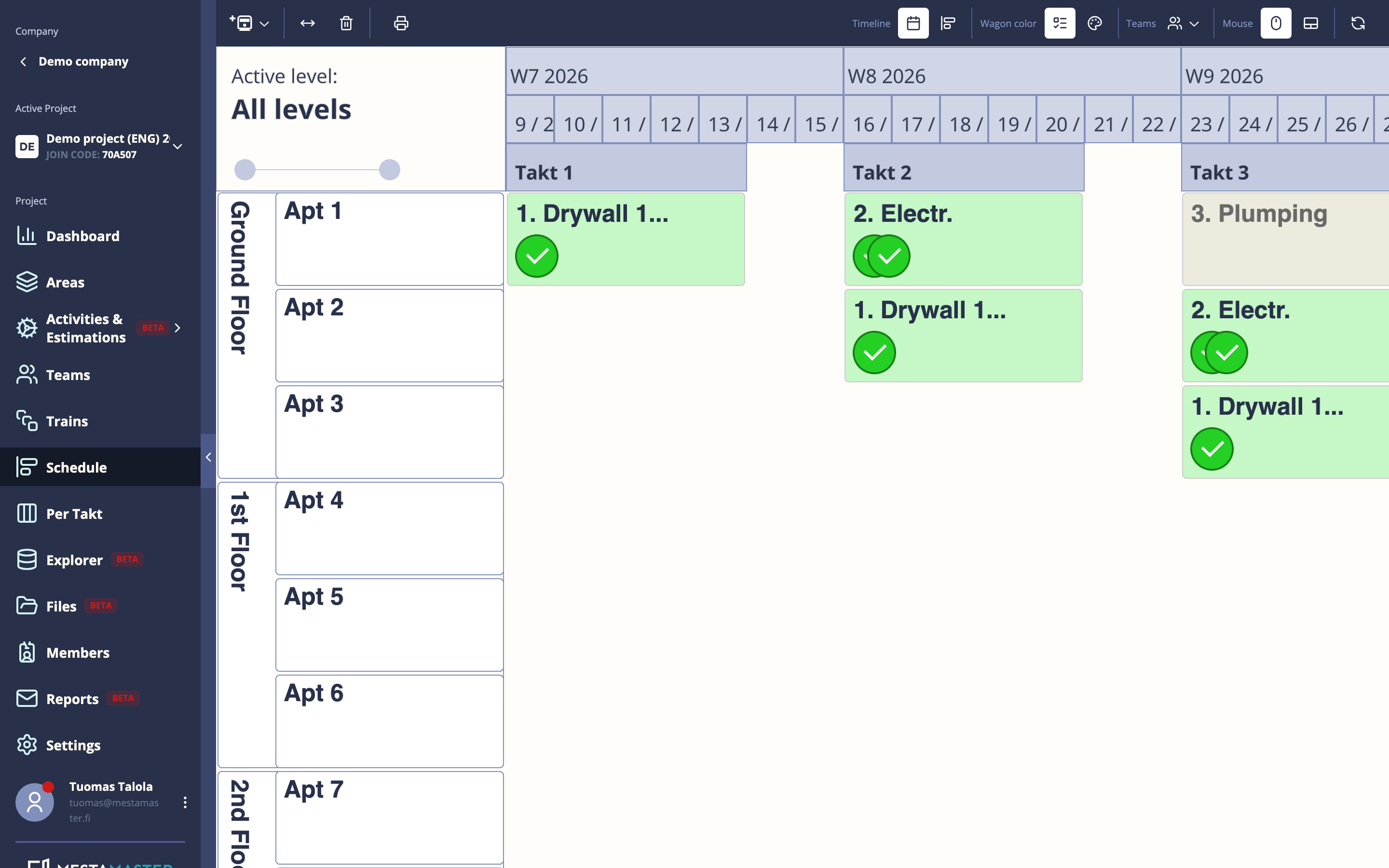
The Schedule is the visual heart of Mestamaster. It shows when each takt train runs through each space in your project — a location-time grid where rows are spaces and columns are takt periods.
Getting there
Open a project → Schedule
Reading the schedule
The schedule is a canvas you can pan and zoom freely.
- Rows = spaces (building areas, rooms, floors)
- Columns = takts (time periods, typically one week each)
- Colored blocks = takt trains moving through spaces
Each block represents a train running in one space during one takt. The block is divided into wagons (one per trade or task group), shown as colored segments.
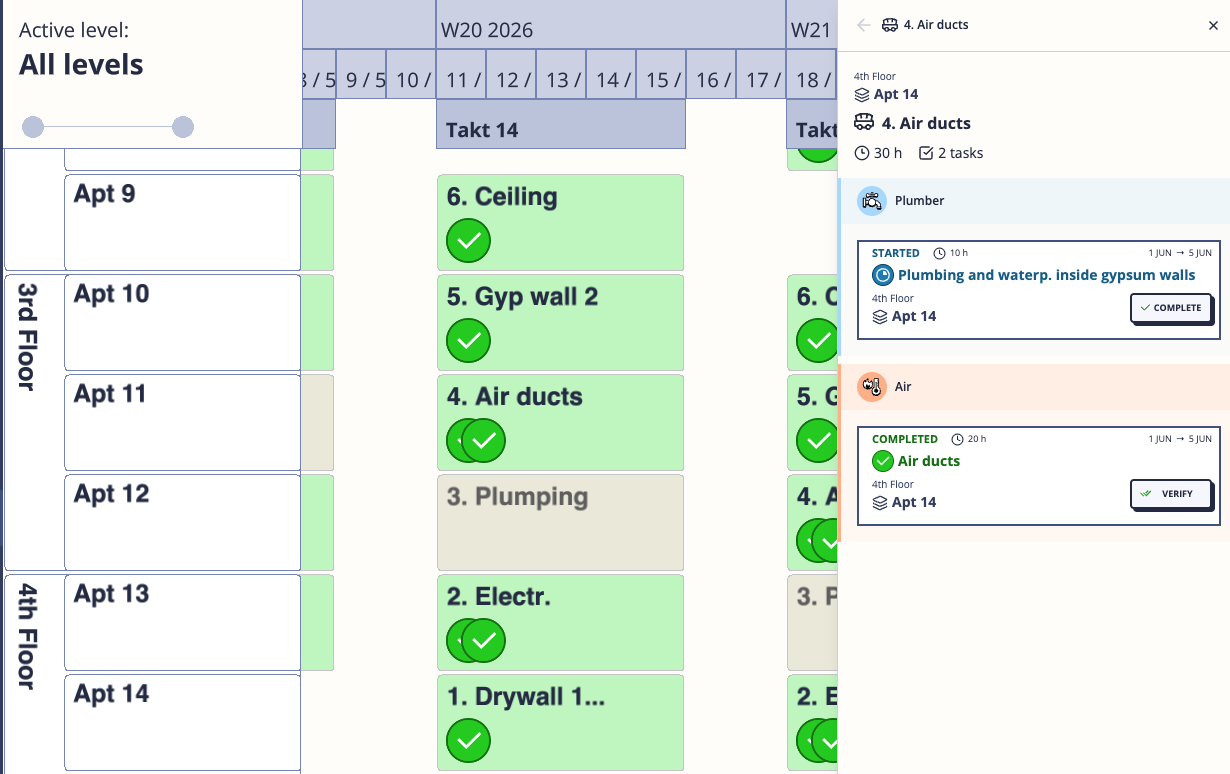
Navigation
| Action | How |
|---|---|
| Pan | Click and drag on empty canvas |
| Zoom | Scroll (mouse wheel or trackpad pinch) |
| Toggle zoom mode | Use the Mouse / Trackpad toggle in the toolbar if scrolling feels inverted |
Toolbar
The toolbar at the top controls what you see and what tools are active.
View options
- Slice selector — switch between the full space hierarchy and any slice (composite space grouping) you’ve defined
- Teams — highlight trains by team
- Active level — control how deep the space hierarchy expands (useful on large projects to reduce visual noise)
- Wagon color — color wagons by their status (“Color wagons by status”) or by their user-defined color (“Color wagons by user-defined colors”)
- Timeline mode — toggle between Schedule mode (shows full calendar including weekends) and Takt mode (weekends and non-working dates hidden)
- Mouse — toggle between mouse wheel zoom and trackpad pinch zoom
Tools
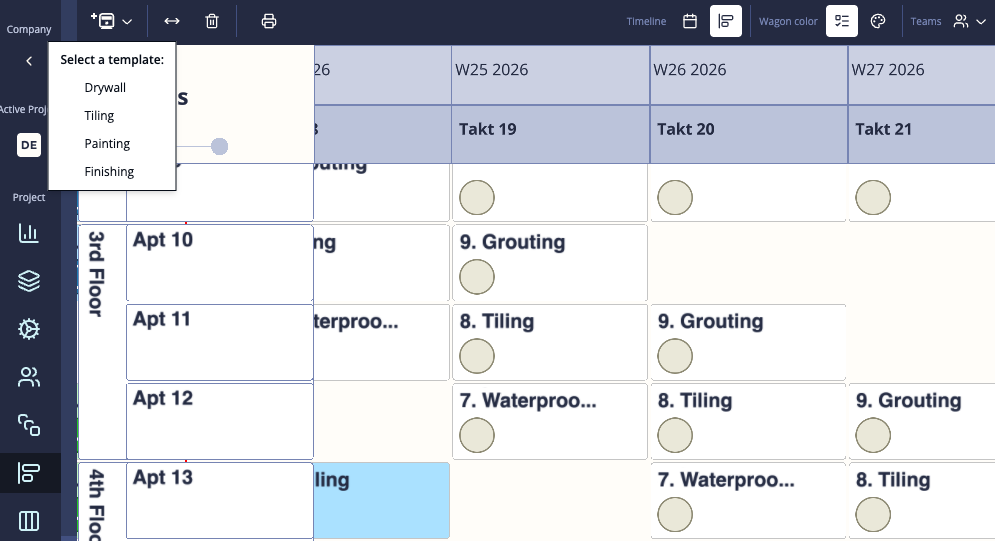
- Add new trains — select a template from the dropdown, then click cells to place trains (enters anchor mode)
- Move trains — drag placed trains to a different takt or space
- Delete trains — click a train to remove it
Switch tools using the toolbar icons. Press Escape to cancel any active operation.
Adding trains to the schedule
Trains come from your Takt Train Templates. To place one on the schedule:
- Click the + Create train dropdown in the toolbar
- Select a template
- Click a cell on the canvas to place the first train
This enters anchor mode — the template stays active so you can keep clicking to place the same train in more spaces without going back to the dropdown.
Press Escape or click the toolbar cancel button to exit anchor mode.
Moving or Deleting Trains
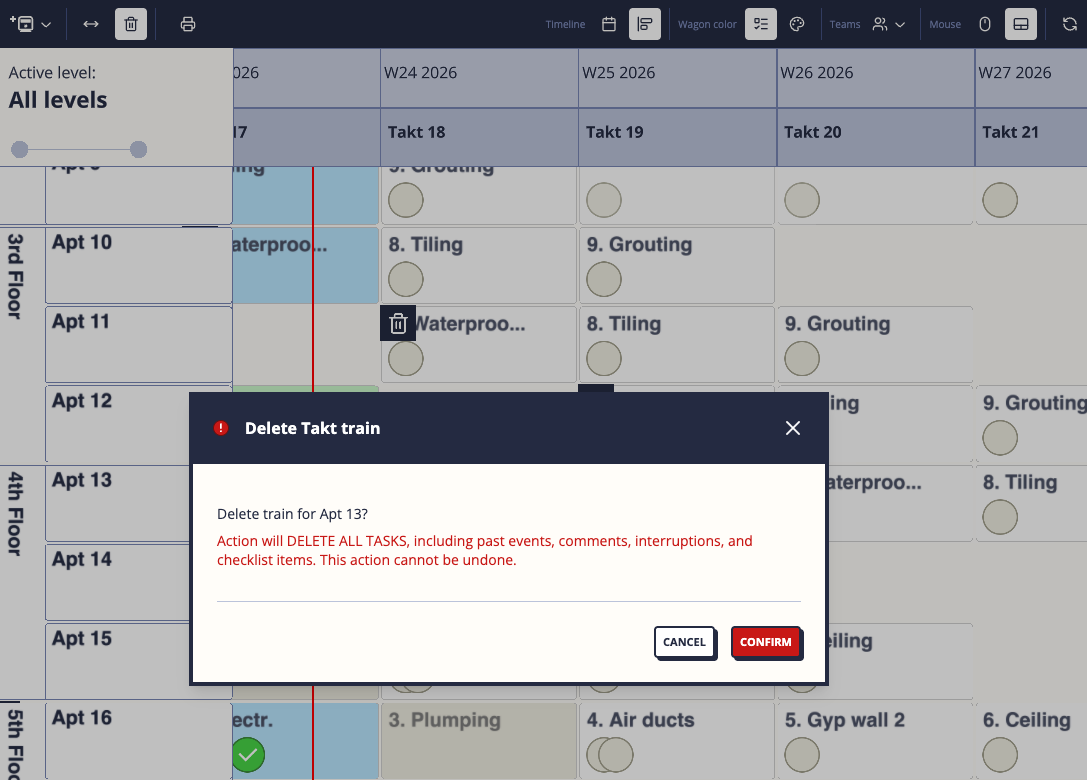
On the toolbar click on <-> icon to move the trains or Trash can to delete trains from the schedule.
- Trains can be moved forward or backward on the same space
- Deleting a train from a space does not delete the template. However, it will delete all the task information!
Printing the schedule
Use the Print button in the toolbar to export the schedule as a printable view. This renders the full canvas into a format suitable for posting on site.
Tips
- Trains are linked to templates — changes to a template do not automatically update already-placed trains. Think of templates as blueprints and placed trains as built instances.
- Use the Refresh button if you know someone else has made changes and the canvas looks stale.
- On large projects, reduce the depth level to get a cleaner overview, then drill in for detail.