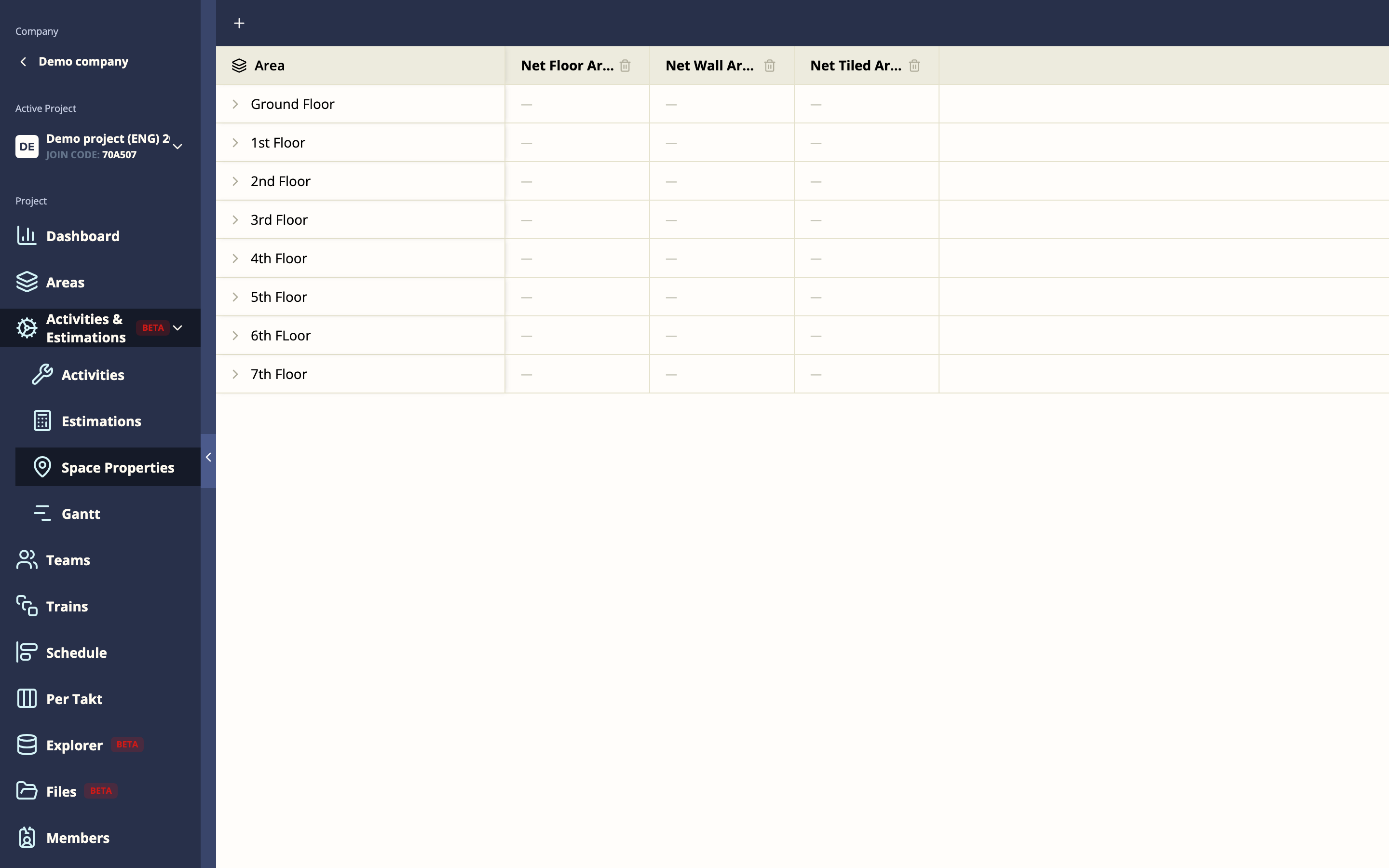
The Space Properties Matrix is a spreadsheet-like view for recording physical measurements for each space — floor area, wall area, volume, and any other quantity relevant to your project. These measurements feed into the estimation system to calculate task durations automatically.
Getting there
Open a project → Space Properties (in the project sidebar)
Reading the matrix
- Rows = spaces (your full space hierarchy or a slice)
- Columns = properties (measurements you’ve defined)
- Cells = the value of that measurement for that space
Click any cell to edit it inline. Changes save automatically.
Creating a property
Click New property and set:
| Field | Description |
|---|---|
| Name | Display name (e.g. “Net floor area”) |
| Code | Short identifier used in the estimation system (e.g. NFA) |
| Unit | m², m³, count, kg, m, m/s, or tonne |
Properties appear as columns across all spaces. Repeat for as many measurement types as your project needs.
Rollup values
Mestamaster automatically sums child values into parent rows. If Floor 1 has three apartments each with 50 m² of floor area, the Floor 1 row shows 150 m².
This rollup is read-only — you cannot edit a parent row directly if it has children with values.
How properties connect to estimates
Once you have space properties filled in, the Activity Estimations Matrix lets you define how many work-hours are required per unit of each property for each activity. Mestamaster then multiplies the two together to calculate expected task durations — removing most of the manual estimation work.
Tips
- Fill in the Space Properties Matrix before setting up estimations — the estimations are meaningless without the underlying measurements.
- Use net measurements (net floor area, net wall area) rather than gross where possible — they give more accurate labor estimates.
- You can add custom properties beyond the standard ones (e.g. “Number of fixtures”, “Door count”) if your estimations depend on them.