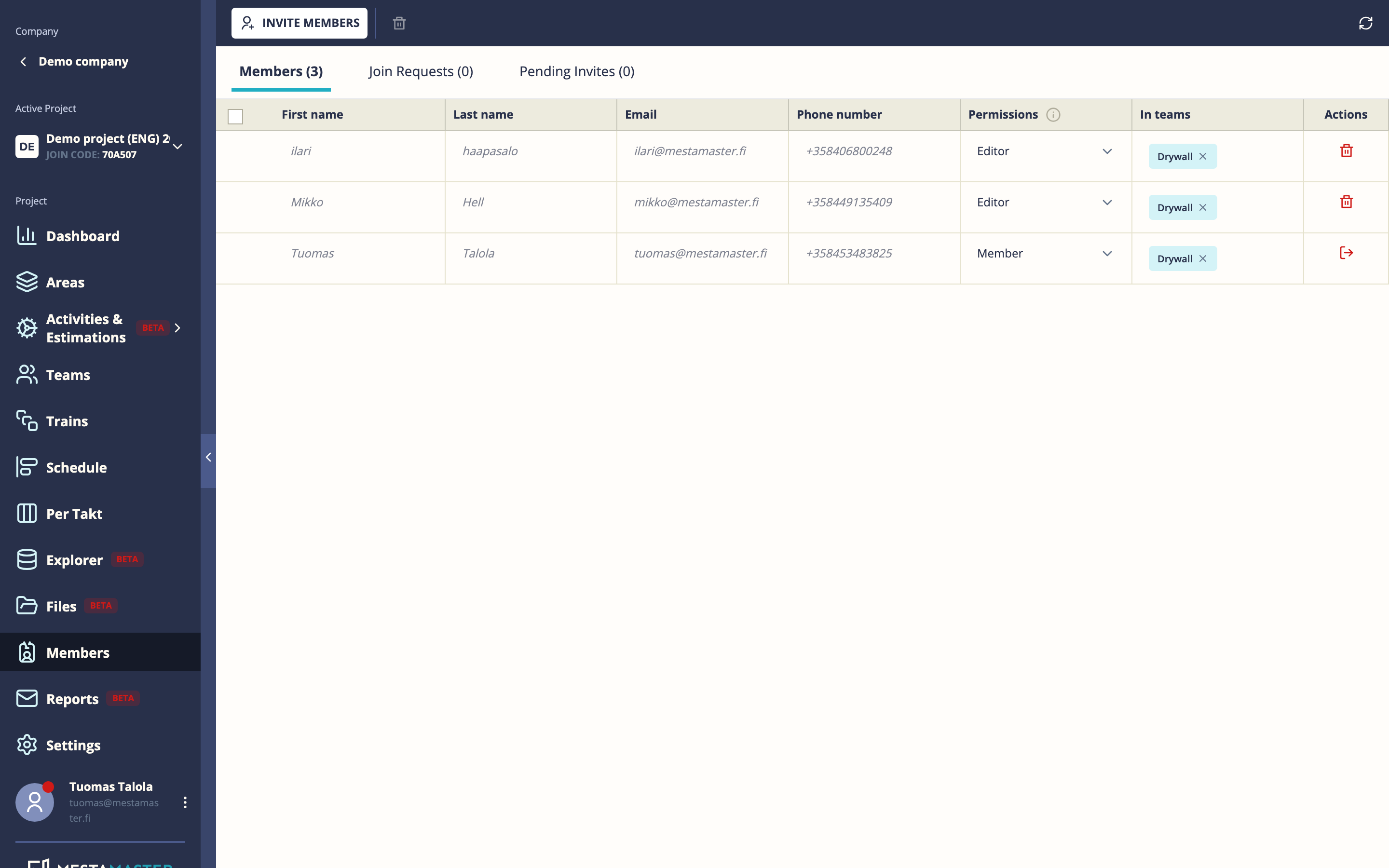
The Members section controls who has access to your project and what they can do. You can invite people by email or phone, manage join requests, and set permission levels.
Getting there
Open a project → Members
Permission levels
Every project member has one of three permission levels:
| Level | What they can do |
|---|---|
| Editor | Full access — manage schedule, spaces, teams, activities, members. Cannot delete the project itself. |
| Member | View everything, update their own tasks, participate in teams. The default for site workers and subcontractors. |
| Guest | View-only access. Cannot make any changes. Suitable for clients or external observers. |
You can change a member’s permission level at any time from their row in the member list.
Three tabs
Members
All currently active project members. Shows name, email, permission level, and the teams they belong to. Click a member’s row to change their permission or remove them from the project.
Join Requests
Users who have requested to join the project from the mobile app (by scanning a QR code or entering a join code). You can Accept (as Member or Guest) or Reject each request.
Pending Invites
Invitations that have been sent but not yet accepted. From here you can Resend or Revoke an invite.
Inviting someone
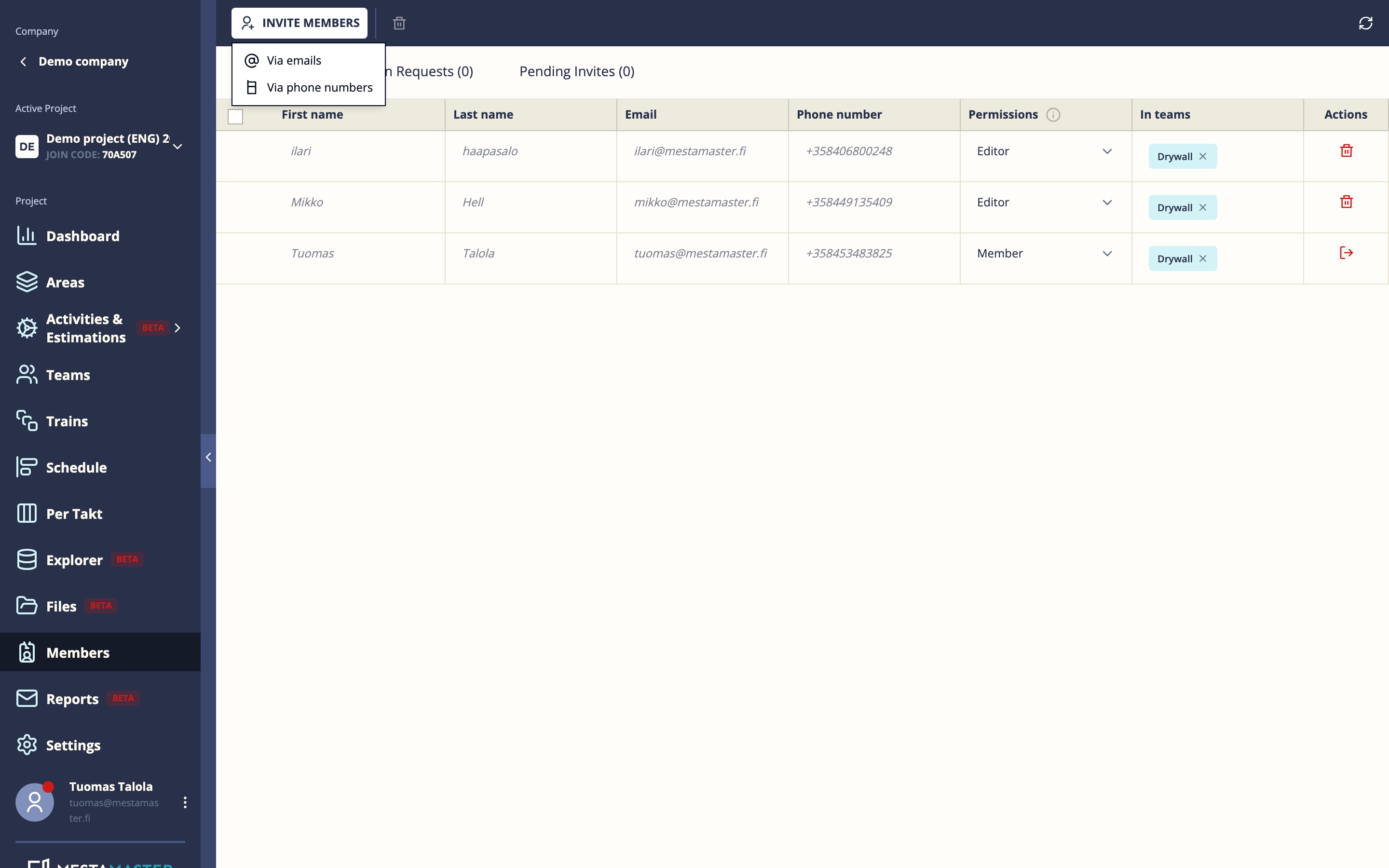
Click Invite and choose your method:
By email Enter one or more email addresses (separated by commas or Enter). Select the permission level. The recipient gets an email with a link to join.
By phone Enter a phone number with country code (e.g. +358401234567). The recipient gets an SMS with a link to download the Toolbelt app and join the project. Useful for site workers who don’t have a work email.
Invite multiple at once Paste a list of email addresses or phone numbers — one per line or comma-separated — to send bulk invitations in one step.
Join requests (from the mobile app)
Workers can request to join a project from the Toolbelt app by entering the project’s join code or scanning a QR code. These requests appear in the Join Requests tab for a project Editor to review and approve.
Removing a member
Find the member in the list, open their row options, and choose Remove. This immediately revokes their access. Their past contributions (task updates, comments) remain in the project history.
Tips
- Use Member level for all site workers and subcontractors by default — they can do everything they need without the risk of accidentally changing the schedule or space structure.
- Guest access is ideal for clients who want to see progress without being able to make changes.
- If someone will manage the schedule, set them as Editor from the start — permission upgrades require an existing Editor to make the change.