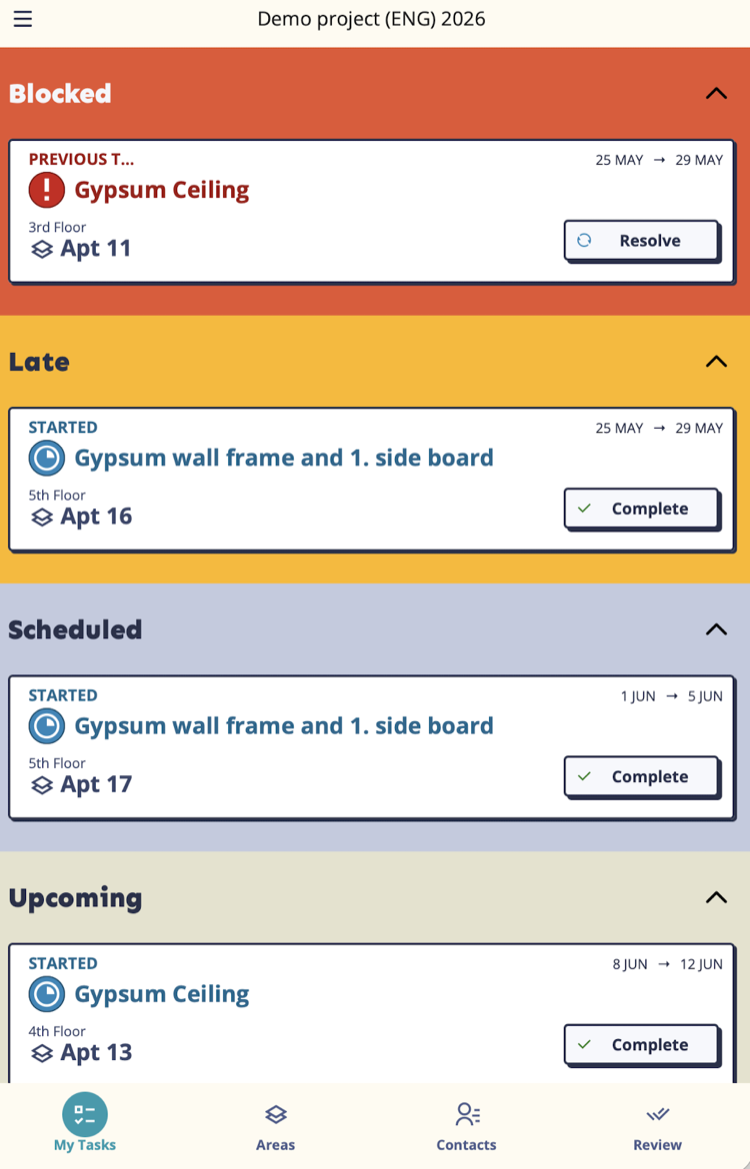
Mestamaster mobile app is where workers manage their individual tasks. It shows everything about a task — when it’s due, what needs to be done, who’s on the team, and the full history — and provides action buttons to update its status.
Getting there
Open Mestamaster app → Choose project if applicable
Task information
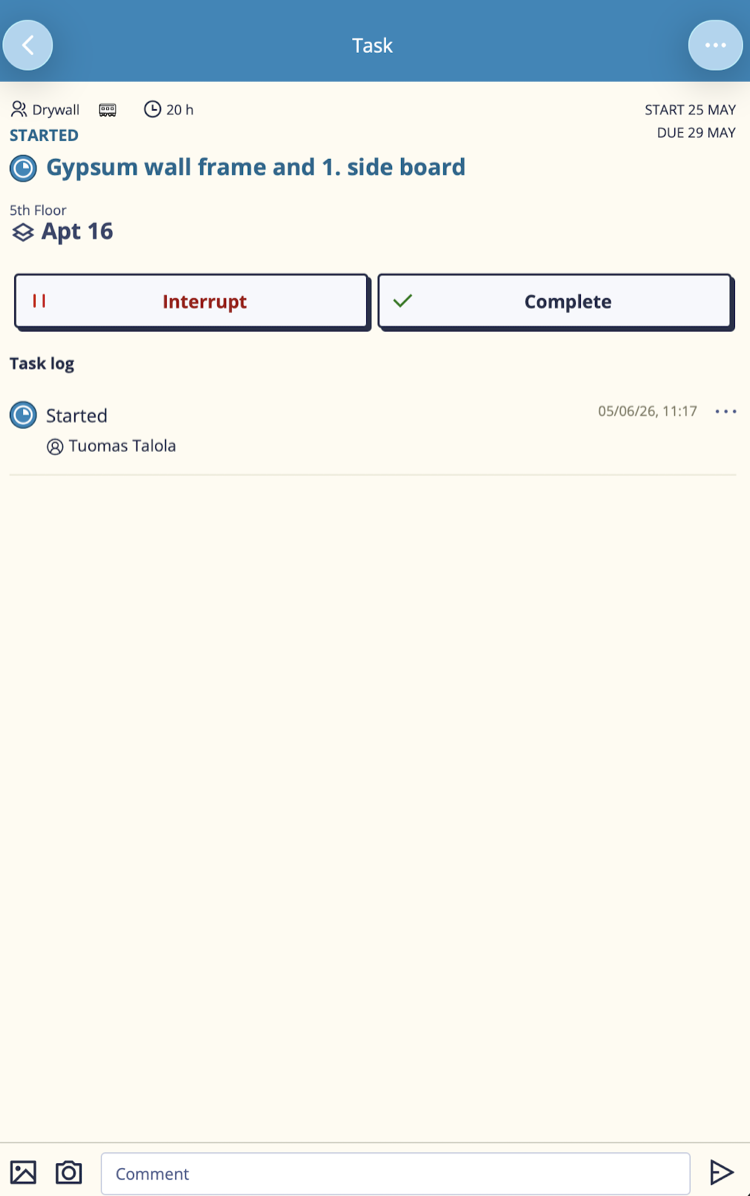
The top of the screen shows the task header in the team’s color. Below that:
| Section | What it shows |
|---|---|
| Dates | Planned start and due date |
| Team | Which team is responsible |
| Space | Where the work happens |
| Wagon | Which takt train wagon this task belongs to |
| Estimated hours | Expected work duration |
| Description | Instructions or notes added by the planner |
Warnings
If there are issues with this task — for example, a previous task in the same space hasn’t been completed yet — a warning banner appears at the top. Review warnings before starting work.
Task actions
The action buttons change depending on the current status of the task:
| Current status | Available actions |
|---|---|
| Not started | Start |
| Started | Complete, Interrupt, Skip |
| Interrupted | Continue, Skip |
| Skipped | Unskip |
| Completed | (awaiting verification) |
| Rejected | Start (begin rework) |
Starting a task
Tap Start to mark yourself as working on this task. The task timestamp records when work began.
Completing a task
Tap Complete when the work is done. If a checklist is attached, you must check off all items first.
Interrupting a task
Tap Interrupt when you cannot continue. You must select a reason:
- Materials
- Plans
- Equipments
- Supplies
- Space not available
- Space not clean
- Previous todo
- Other
Add a comment to explain the situation. The interruption is logged and visible to the project manager on the Dashboard.
Resuming after an interruption
Tap Continue to resume an interrupted task.
Skipping a task
Tap Skip if this task does not apply in this space (e.g. a task for a feature that doesn’t exist here). The task is marked skipped and excluded from progress calculations.
Checklist
If the task has a checklist, it appears below the description. All items must be checked off before the Complete button becomes active.
Verification (if enabled)
On projects using the quality verification workflow:
- Completing a task puts it in Ready for review state
- A reviewer (typically a foreman or QA inspector) then Verifies or Rejects it
- If rejected, the task returns to the team for rework
Reviewers use the Task Review screen to manage this workflow.
Comments
The Task Log shows the task’s history — status changes, interruptions, and user comments — in chronological order.
To add a comment:
- Tap the comment input field
- Type your message
- Optionally attach a photo
- Tap Send
Comments are visible to everyone on the project. Pinned comments appear at the top of the list regardless of when they were posted.
Contacting team members
Tap any team member’s name to see options:
- Call
- Send email
- Send message (SMS)
- Open in WhatsApp
Tips
- Always record an interruption with a specific reason rather than a generic “Other” — the Dashboard interruption analysis is only useful if reasons are accurate.
- Add a photo comment when completing tasks in areas where the quality of work might be questioned later — it creates a timestamped record.
- If you see a warning about a previous task, contact that team before starting — it’s usually faster to resolve it proactively than to get interrupted later.