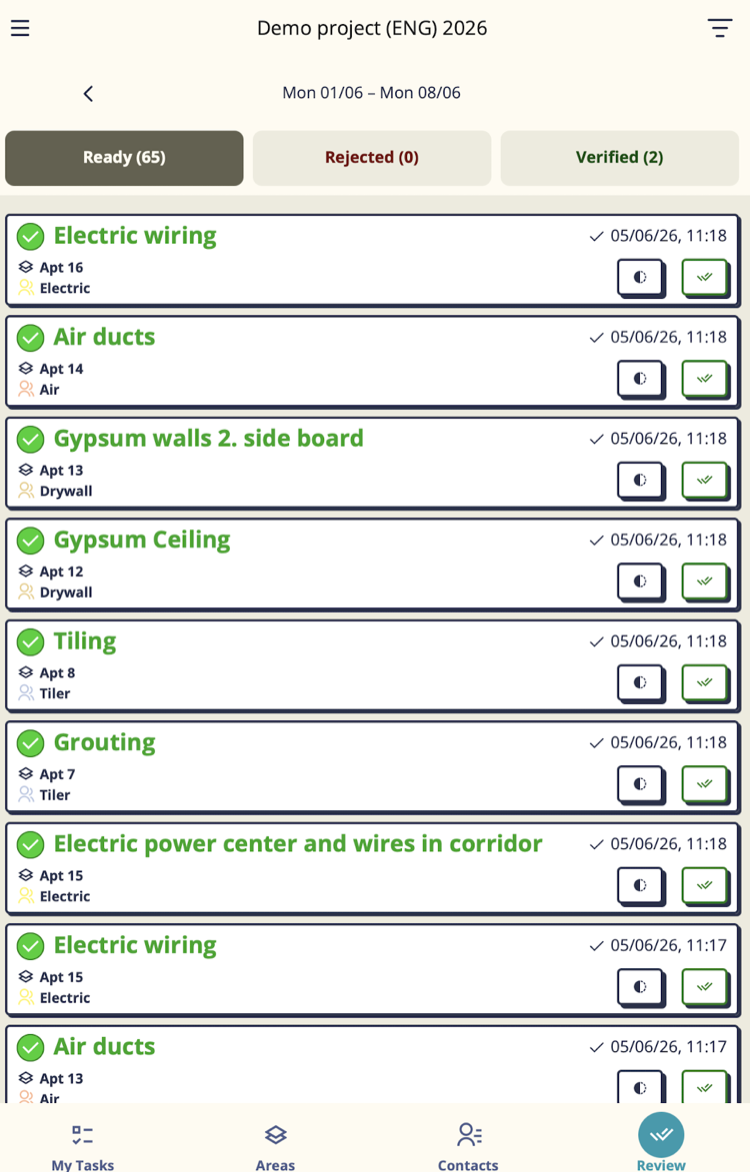
The Task Review screen is the quality inspection workflow. It shows all completed tasks organized by takt period with three tabs: ready for review, rejected, and verified. Foremen and QA inspectors use this screen to sign off completed work or send it back for rework.
Getting there
Open the Mestamaster app → Review tab (accessible if you have reviewer permissions on the project)
Navigating takt periods
The top bar shows the current takt’s date range (e.g. “May 19 – May 25”). Use the left/right arrows to step back and forward through takt periods.
Tap the double arrow (⏩) to jump directly to the current takt.
Three tabs
Ready
Tasks that have been marked complete and are waiting for your sign-off. The count badge shows how many tasks need attention.
Rejected
Tasks you (or another reviewer) have previously rejected. These are back with the team for rework.
Verified
Tasks that have been verified as complete. A record of accepted work.
Reviewing a task
Tap any task card to open its detail screen, where you can see the full task information, comments, and history. From the detail screen:
- Tap Verify to accept the work as done
- Tap Reject to send it back — you must add a comment explaining what needs to be fixed
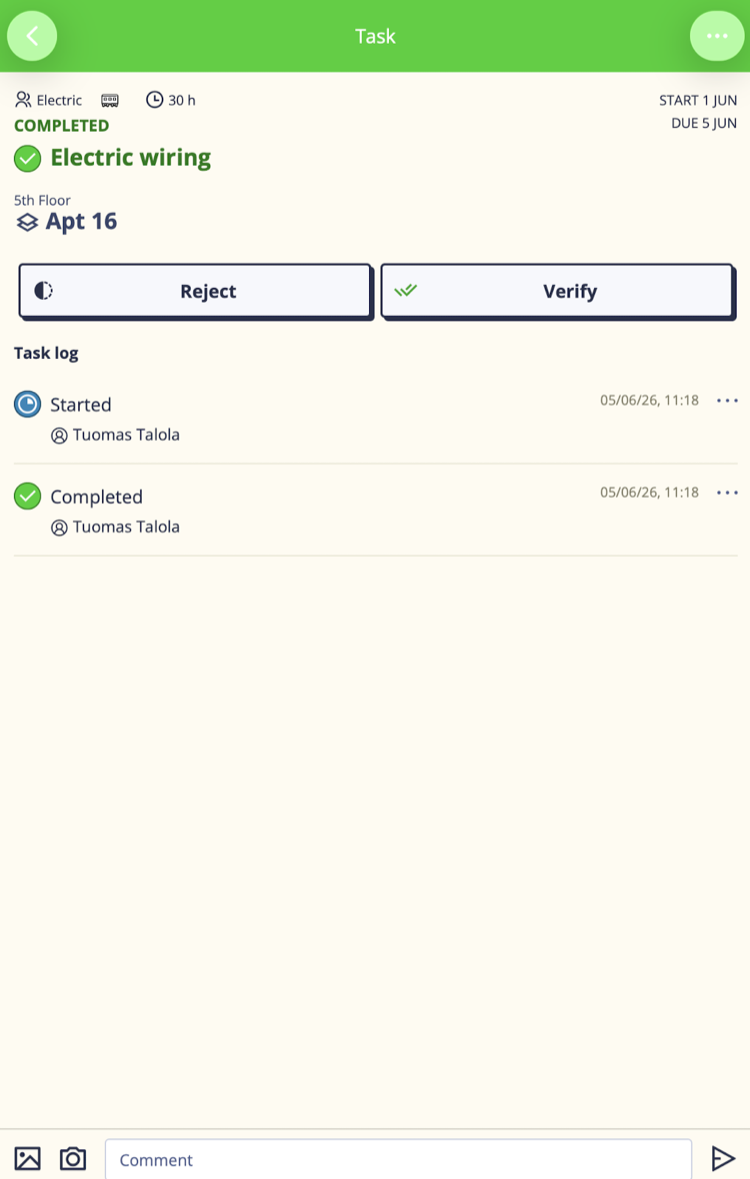
Verified tasks move to the Verified tab. Rejected tasks return to the team and appear in the Rejected tab.
Filtering and sorting
Tap the filter icon in the toolbar to:
Sort by:
- Newest first (default) — most recently completed tasks at the top
- Oldest first — earliest completed tasks at the top
Group by:
- None (default) — flat list
- Team — tasks grouped by team, with team badges as section headers
Filter settings are saved on your device and restored the next time you open the screen.
Tips
- Review tasks frequently — the longer a rejection sits before the team hears about it, the harder rework becomes.
- Use the Group by Team option during contractor review meetings — it makes it easy to discuss one trade’s work at a time.
- The task count on each tab updates in real time. Pull down to refresh if you’ve just verified a batch and want to confirm the count dropped.
- Only users with Editor level access on the project see the Review tab. If a foreman should be reviewing work, make sure they’re set as Editor in Project Members.