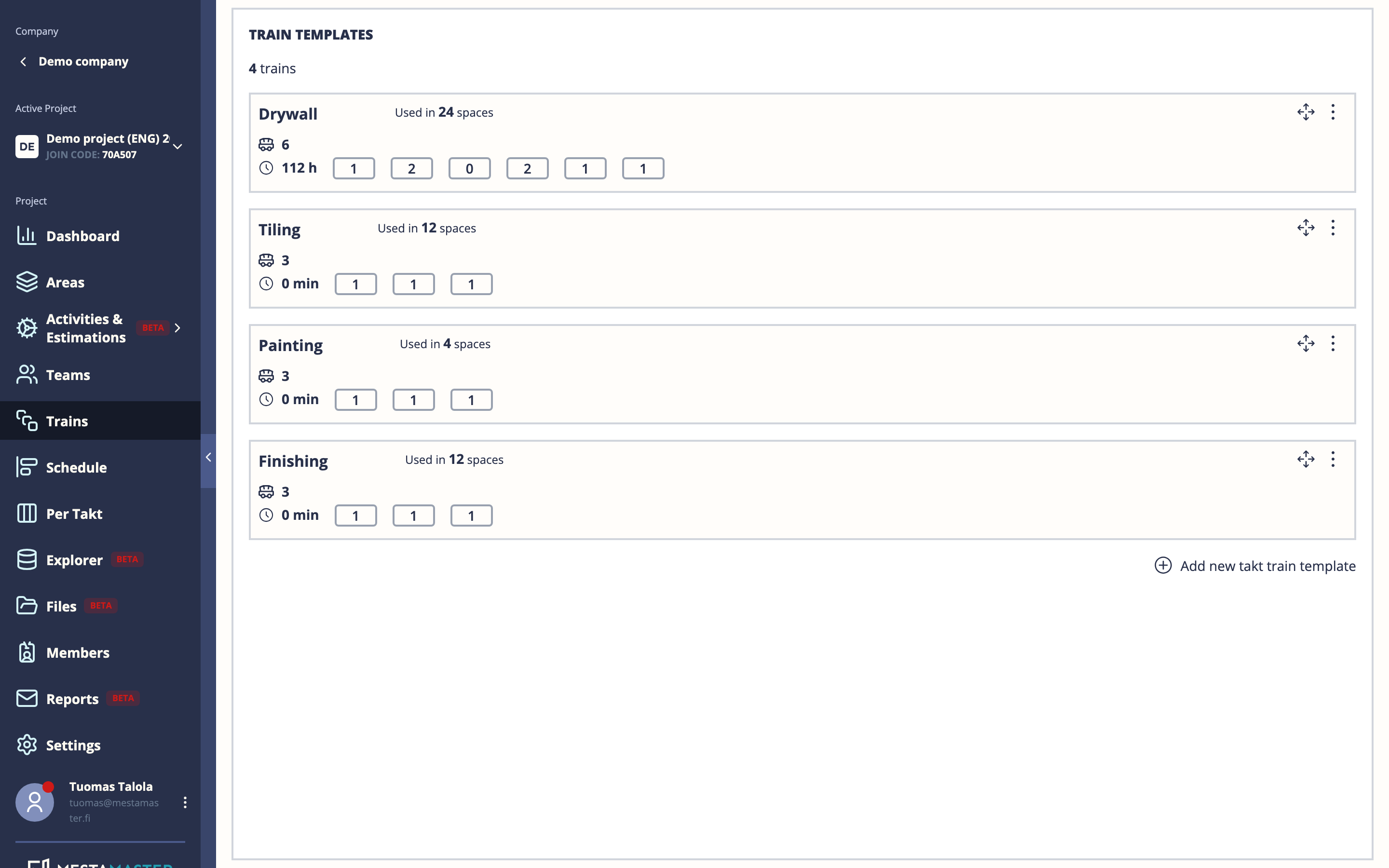
Train Templates define the repeating Takt work phases that move through your project’s spaces. Think of them as the blueprint for your production rhythm: you define the template once, then place it on the Schedule across as many spaces and time periods as needed.
Getting there
Open a project → Trains
Concepts
| Term | Meaning |
|---|---|
| Train template | A named phase (e.g. “Framing”, “MEP Rough-in”, “Finishing”) |
| Wagon template | A group of tasks within a phase, typically assigned to one trade |
| Task template | A single unit of work within a wagon |
A train contains wagons. A wagon contains tasks. When you place a train on the Schedule, it spawns actual tasks in that space for that takt.
Creating a train template
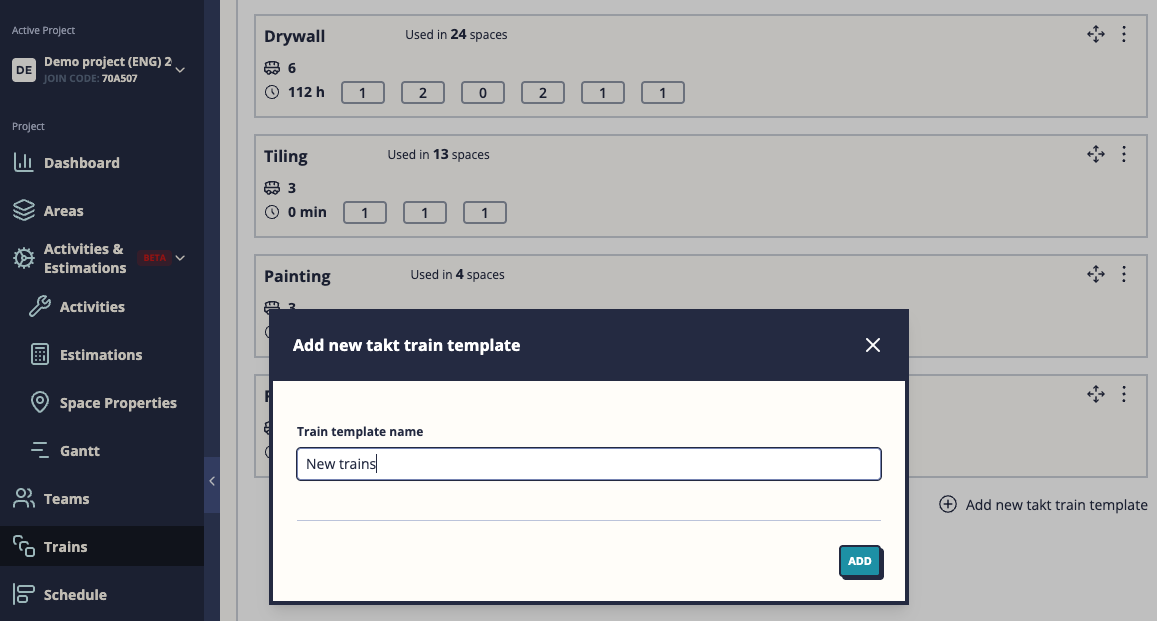
- Click New template on the Takt Trains page
- Enter a name for the train (e.g. “Structural phase”)
- The templat
Adding wagons
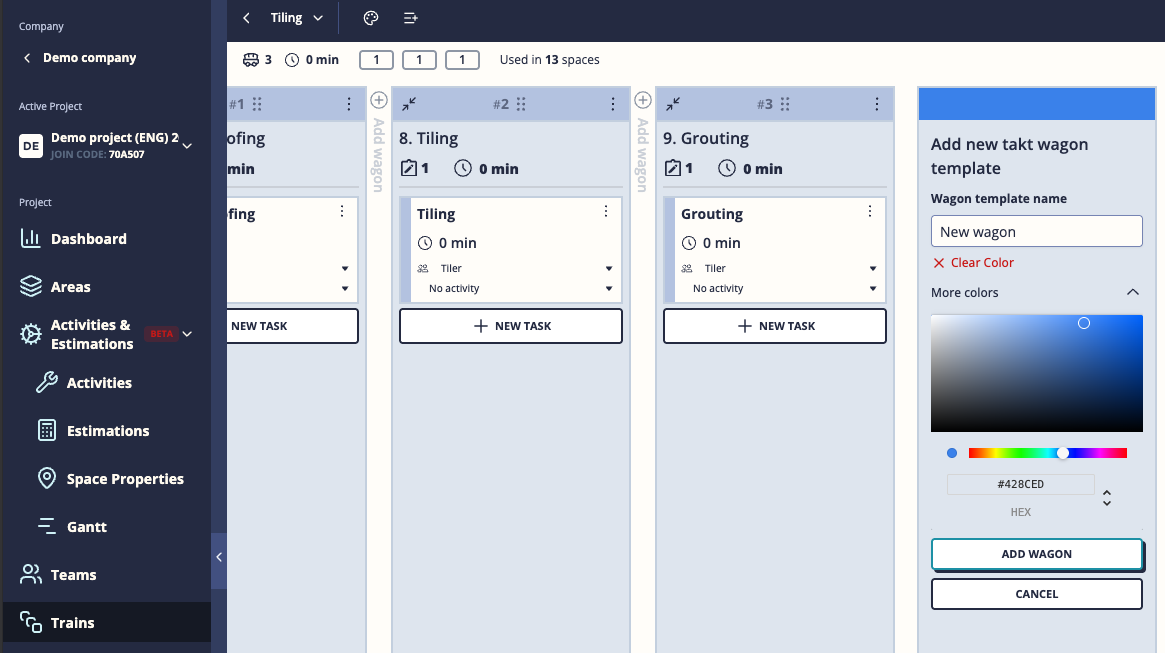
Inside a train template, click Add wagon to add a wagon template.
For each wagon you can set:
- Name — what this group of work is called
- Color — wagon color on the schedule (leave empty to inherit team color automatically)
- Buffer — mark this wagon as a buffer (shown with a “B” badge; used for cleanup or prep work)
Wagons can be reordered by dragging.
Adding multiple wagons at once
Use Add wagons (the stacked icon in the toolbar) to create several wagons in one step. Useful when setting up a new phase with many trades.
Adding tasks to a wagon
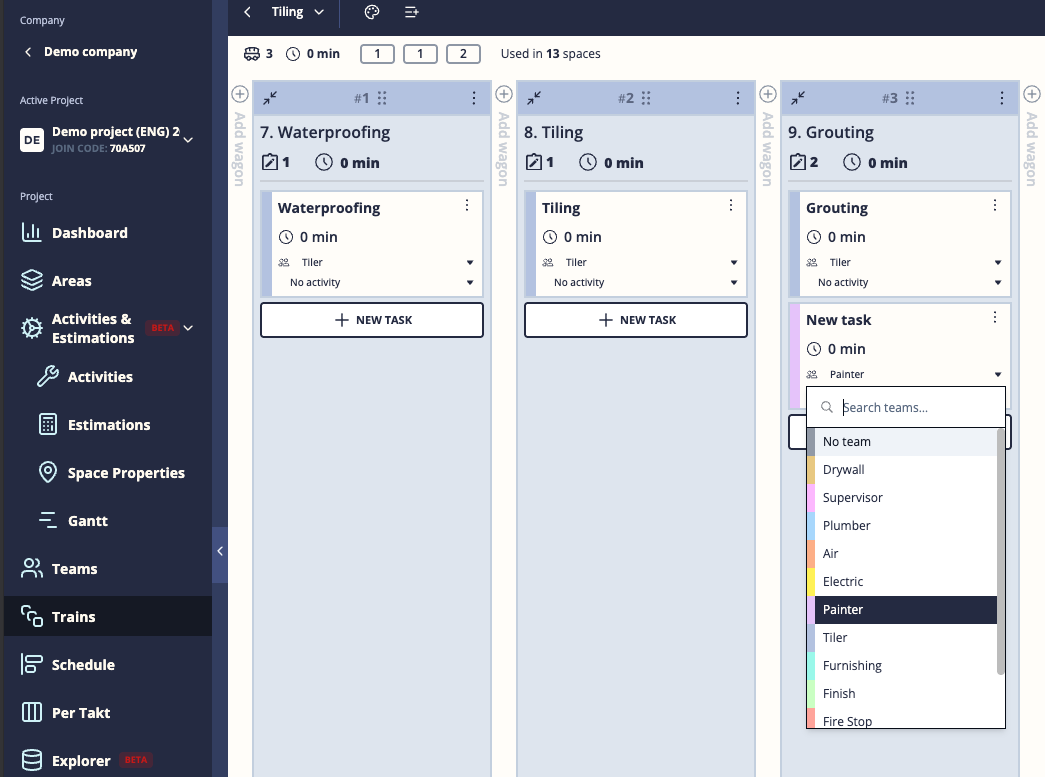
Inside a wagon, click Add task to create a task template.
For each task you can set:
- Name — what needs to be done
- Activity — the work category (links to the Activities module)
- Estimated duration — how long it takes (used for workload planning)
- Checklist items — optional checklist that workers must complete before marking the task done
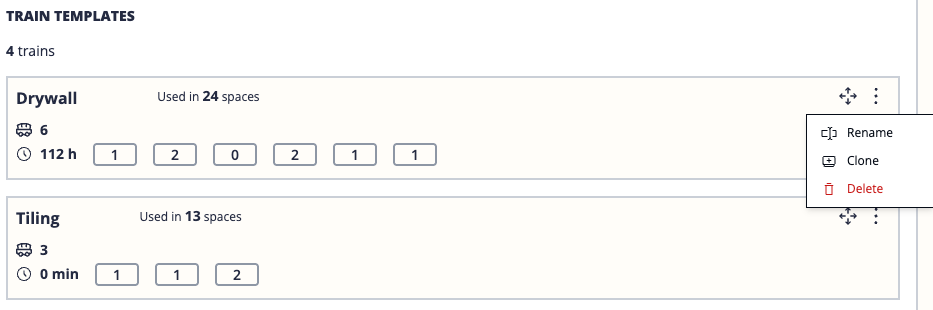
Cloning a train template
If you have a phase that is similar to an existing one, use Clone template instead of starting from scratch.
When cloning you can optionally specify which spaces the clone should “own” — useful if you have two parallel phases that cover different parts of the building.
Tips
- Set up all your train templates before you start placing them on the Schedule — it is much easier to plan the templates first and then schedule them than to edit them after placement.
- Use Buffer wagons for activities like cleaning or inspection that happen between trades. They show distinctly on the Schedule so planners know not to overlap them.
- Template changes do not retroactively update already-placed trains. If you need to change a task on live trains, update them individually via Per Takt or Explorer.