Mestamaster exposes a Model Context Protocol (MCP) server for each project. MCP is an open standard that lets AI assistants — like Claude or GitHub Copilot — securely connect to external tools and data. Once connected, your assistant can read your project’s live data (spaces, activities, teams, schedule, progress) and take the same kinds of actions the built-in AI Assistant (Okkim) can.
Each Mestamaster project has its own MCP server, so you always connect to one specific project at a time.
Before you begin
You’ll need:
- A Mestamaster account with access to the project you want to connect.
- Your project ID (see below).
- An MCP-capable client — this guide covers Claude (web, desktop) and GitHub Copilot in VS Code.
Connecting uses OAuth: you sign in with your Mestamaster account in a browser, and the assistant is granted access with your permissions. No API keys to copy or store.
Your MCP server URL
Every project’s MCP server lives at this address:
https://api.mestamaster.com/mcp/v1/projects/YOUR_PROJECT_IDReplace YOUR_PROJECT_ID with your project’s ID. To find it, open the project in Mestamaster and copy the number from the address bar after /projects/ — for example:
https://app.mestamaster.com/projects/1234/...
                                     ▲
                                     └── project ID = 1234
So for project 1234, your server URL is:
https://api.mestamaster.com/mcp/v1/projects/1234If you’re not sure which project ID to use, ask your Mestamaster contact.
Connect in Claude
Option A — Custom connector (recommended)
This is the simplest way and works on claude.ai and the Claude desktop app. Custom connectors are available on Claude Pro, Max, Team, and Enterprise plans.
- Open Settings → Connectors.
- Click Add custom connector.
- Fill in the fields:
- Name — something recognizable, e.g.
Mestamaster – Tower A. - Remote MCP server URL — your server URL from above.
- Name — something recognizable, e.g.
- Click Add, then Connect.
- A browser window opens — sign in to Mestamaster and approve access (see Authorizing access below).
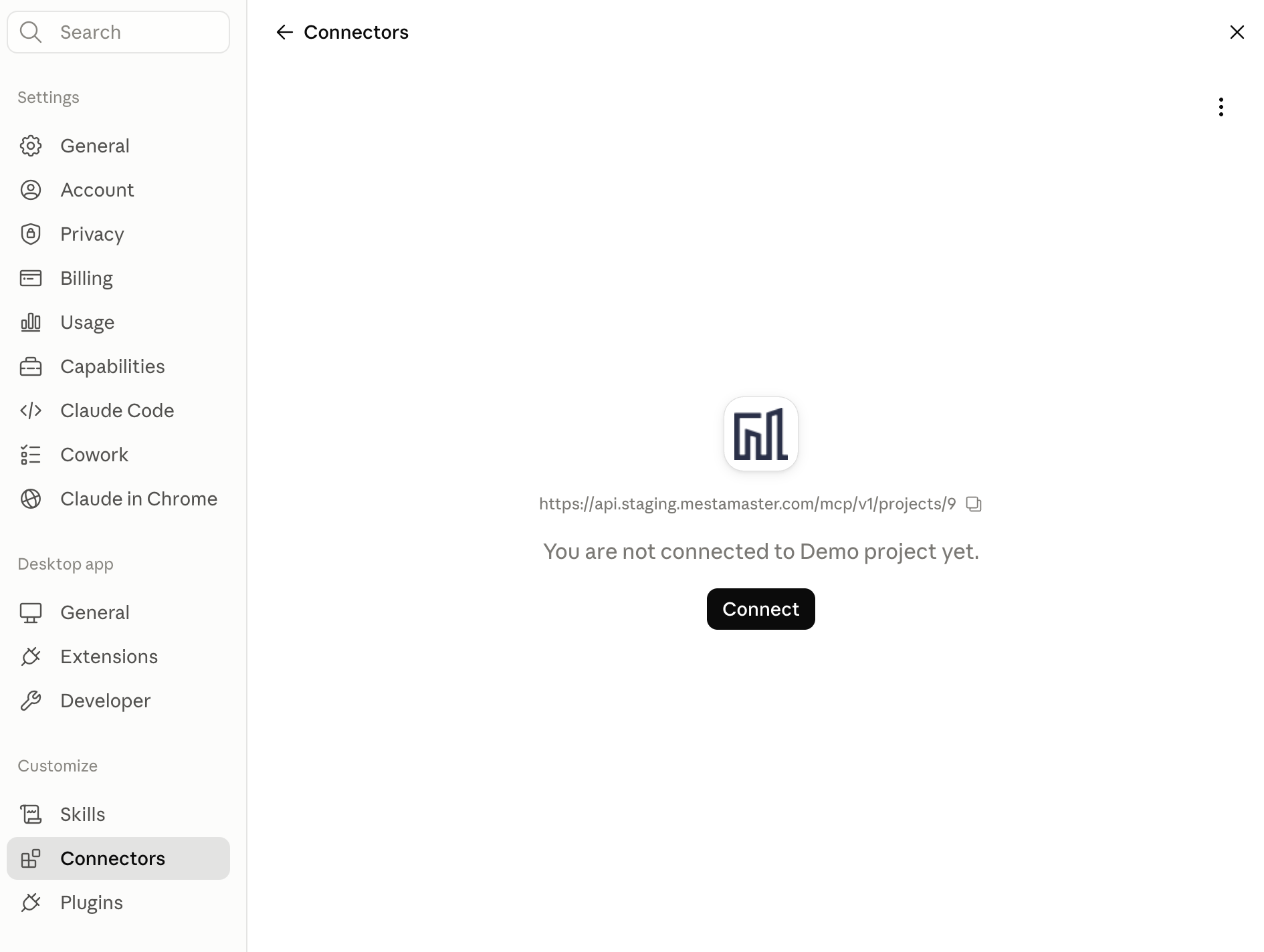
The connector now shows as connected. In any chat, open the tools/connectors menu and make sure Mestamaster is enabled.
Option B — Config file (Claude desktop)
If you prefer to configure the desktop app by hand, use the mcp-remote bridge, which handles the OAuth sign-in for you. This requires Node.js installed.
Open your claude_desktop_config.json:
- macOS —
~/Library/Application Support/Claude/claude_desktop_config.json - Windows —
%APPDATA%\Claude\claude_desktop_config.json
Add a server entry:
{
  "mcpServers": {
    "mestamaster": {
      "command": "npx",
      "args": [
        "-y",
        "mcp-remote",
        "https://api.mestamaster.com/mcp/v1/projects/YOUR_PROJECT_ID"
      ]
    }
  }
}
Save the file and restart Claude. The first time it starts, a browser opens for you to sign in to Mestamaster.
Connect in GitHub Copilot (VS Code)
GitHub Copilot uses MCP servers in Agent mode. You’ll need a recent version of VS Code with Copilot enabled.
Add the server
Create a file named .vscode/mcp.json in your workspace (or run MCP: Open User Configuration from the Command Palette to make it available in every workspace):
{
  "servers": {
    "mestamaster": {
      "type": "http",
      "url": "https://api.mestamaster.com/mcp/v1/projects/YOUR_PROJECT_ID"
    }
  }
}
You can also add it interactively: open the Command Palette (Cmd/Ctrl + Shift + P), run MCP: Add Server, choose HTTP, and paste your server URL.
Sign in and use it
- Open the Copilot Chat view and switch the mode selector to Agent.
- Click the tools (🛠) icon — you should see the Mestamaster tools listed.
- The first time you use a tool, VS Code prompts you to authorize — click Allow, then sign in to Mestamaster in the browser.
That’s it — Copilot can now query and act on your project.
Authorizing access
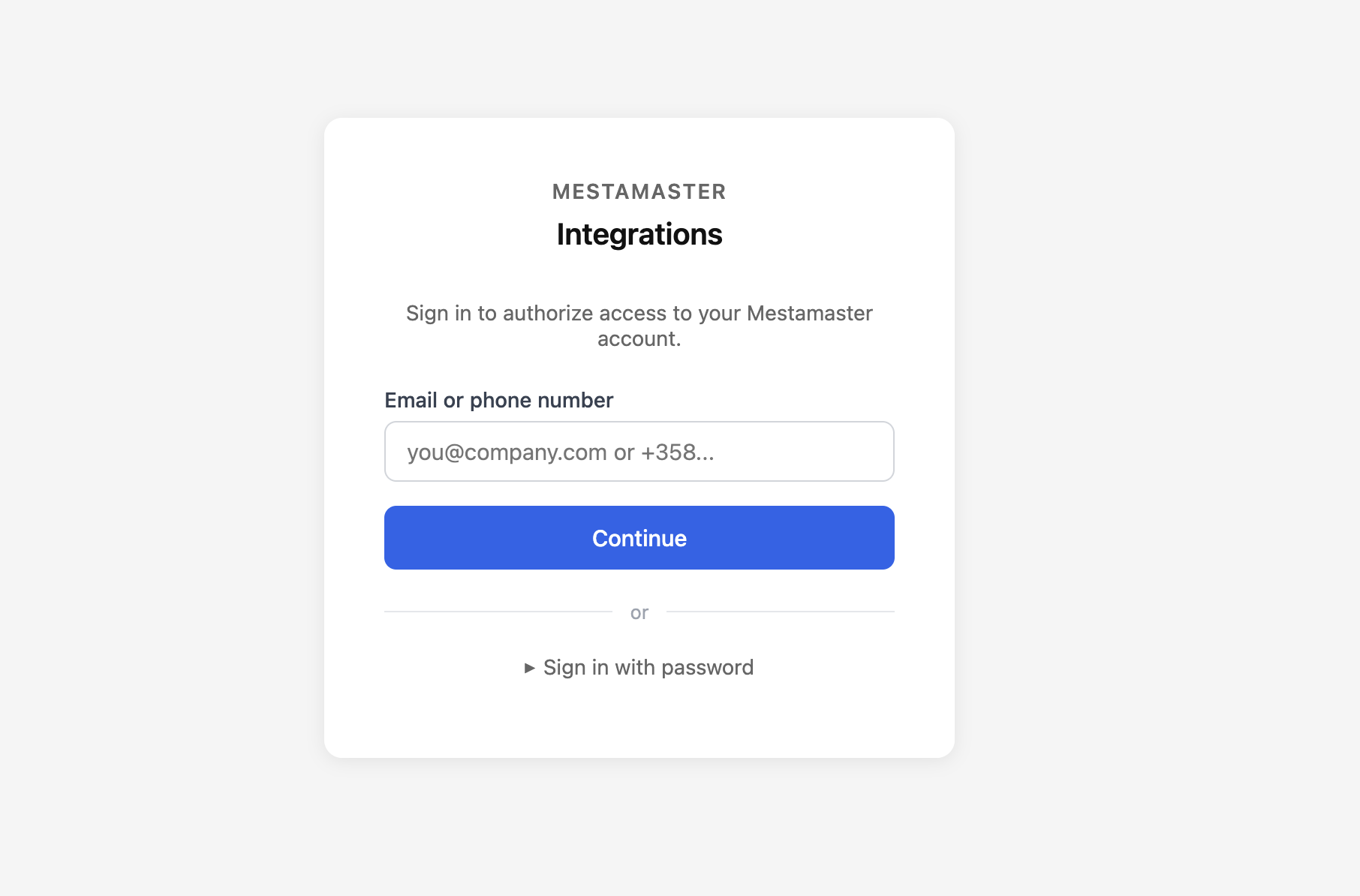
The first time you connect — in either Claude or Copilot — your browser opens Mestamaster’s authorization flow. This is the same OAuth flow regardless of which client you use.
1. Sign in with your Mestamaster account:
2. Review and authorize the access the assistant is requesting, then click Authorize:
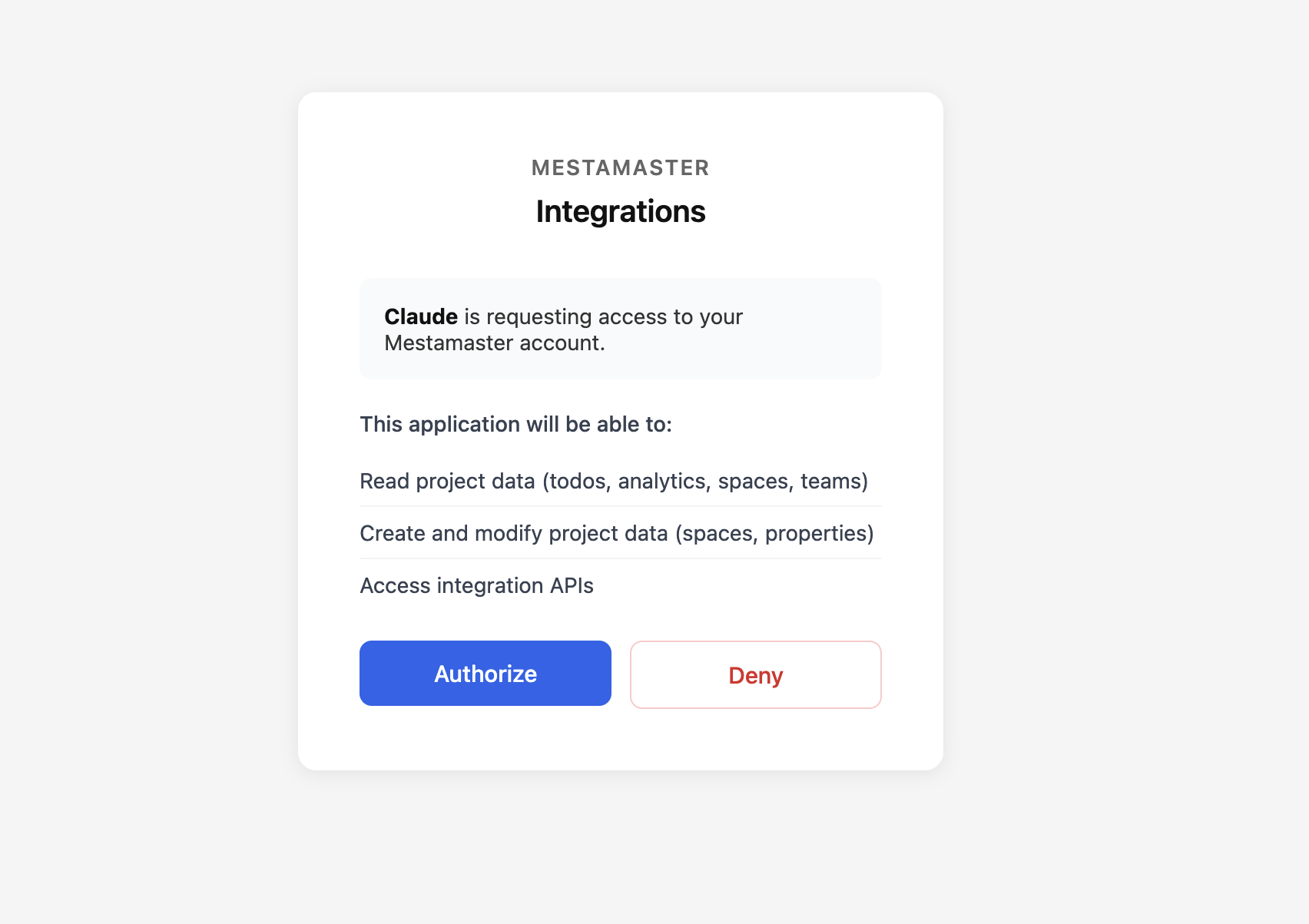
After you authorize, the browser returns you to your assistant and the connection is live. You only need to do this once per client — access is remembered until you revoke it.
Verify it works
Ask your assistant a simple read-only question about the connected project, for example:
- “How many spaces are in this project?”
- “Which teams are overloaded next week?”
- “List the activities that are behind schedule.”
If you get a real answer drawn from your project, the connection is working.
What you can do
Once connected, your assistant can, among other things:
| Area | Examples |
|---|---|
| Read project data | Summarize spaces, activities, teams, schedule, and progress |
| Analyze | Spot overloaded teams, late tasks, interruptions, and pulse trends |
| Plan | Draft schedules, propose takt trains, suggest team capacity |
| Set up | Create spaces, activities, teams, and update task details |
The assistant acts with your Mestamaster permissions — it can only see and change what you can. For multi-step changes, review what it proposes before approving, just as you would with Okkim’s Plan Mode.
Troubleshooting
| Problem | What to check |
|---|---|
| Tools don’t appear | Confirm the server URL is exact and includes the correct project ID. In Copilot, make sure you’re in Agent mode. |
| Stuck on sign-in | Complete the sign-in in the browser window that opened, then return to your assistant. Pop-up blockers can interrupt this. |
| “Unauthorized” / access denied | Your account may not have access to that project. Confirm with your Mestamaster contact. |
| Wrong project’s data | Each URL points to one project — check the project ID in the URL. |
| Config file changes ignored | Restart Claude (desktop) after editing claude_desktop_config.json; re-open the workspace after editing .vscode/mcp.json. |
Security & access
- Access is granted through OAuth using your own Mestamaster login — there are no long-lived keys to leak.
- The server can only do what your account is allowed to do in that project.
- You can revoke access at any time: in Claude, go to Settings → Connectors and disconnect Mestamaster; in Copilot, remove the server from your
mcp.json. - Only connect from clients and machines you trust.