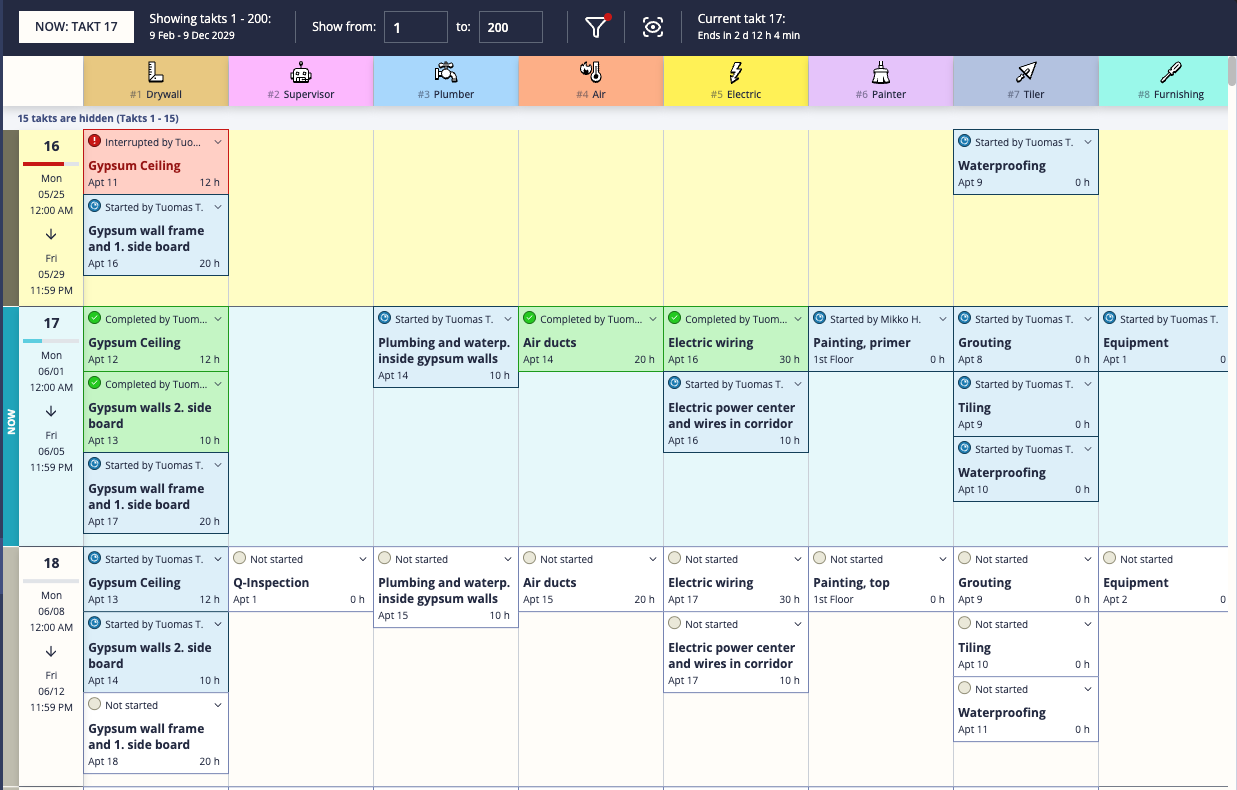
Per Takt is the daily or weekly huddle view. It shows all tasks organized by takt period in a table — rows are tasks, columns are takts — so you can see exactly what is planned when and what state each task is in. This is the view most foremen use to run their team meetings.
Getting there
Open a project → Per Takt
Reading the table
- Rows = tasks (each row is one task in one space)
- Columns = takt periods (weeks or whatever your takt duration is)
- Cells = the status of that task in that takt: not started, started, completed, interrupted, skipped, verified, rejected
Each cell shows the task’s current state with a color indicator. Late tasks are flagged visually. Note: rejected tasks show as Needs rework in this view.
Toolbar options
| Option | What it does |
|---|---|
| Takt range | Select which start and end takt to display |
| Scroll to current takt | Jump the view to the current week |
| Hide past completed takts | Collapse historical takts where all tasks are done — reduces noise |
| Hide past completed tasks | Hides tasks that are already finished — keeps focus on current work |
| Highlight same areas | Colors matching spaces with the same color across all takts — useful for spotting a space that has work in many periods |
| Zoom | Adjust row height and level of detail shown in each cell |
Task actions
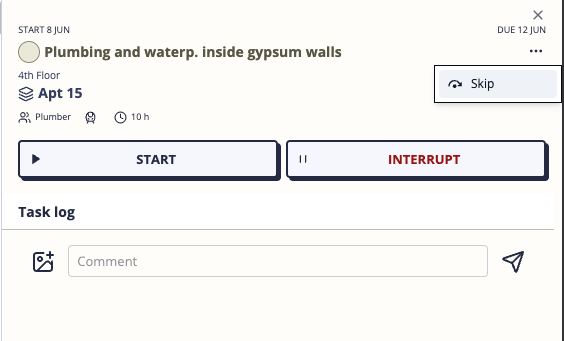
Click any task cell to open the task detail sidebar. From the sidebar you can:
- Start — mark the task as in progress
- Complete — mark the task as done
- Interrupt — pause the task and record a reason (see below)
- Skip — mark the task as intentionally skipped
- Continue — resume an interrupted task
- Unskip — reverse a skip
- Verify — approve a completed task (if you have reviewer permissions)
- Reject — send a completed task back for rework
Interruptions
When you interrupt a task you must select a reason:
- Materials
- Plans
- Equipments
- Supplies
- Space not available
- Space not clean
- Previous todo
- Other
You can also add a comment to explain the situation. The interruption is logged and visible on the Dashboard and in the Explorer.
To resolve an interruption, open the task and choose Continue.
Verification workflow
If quality verification is enabled on your project, completing a task moves it to a Ready for review state rather than directly to done. A reviewer then either:
- Verifies it — the task is fully complete
- Rejects it — the task goes back to the team for rework
Reviewers typically use the mobile Task Review screen for this workflow.
Tips
- Per Takt is the best view for running daily or weekly huddle meetings — project it on a screen and walk through the current takt together as a team.
- Use Hide past completed takts at the start of each week to keep the view focused on current and upcoming work.
- The sidebar updates in real time — if someone changes a task on their phone while you’re in a meeting, the sidebar will reflect it when you refresh.