This guide is for workers using the Mestamaster app on their phone. You’ll use it to see your tasks, mark them as done, and report problems — all from the worksite.
Step 1 — Download the app
Search for Mestamaster in the App Store (iPhone) or Google Play (Android) and install it.
Step 2 — Log in
Open the app. On the login screen you have three options:
SMS code (most common for site workers)
- Tap SMS
- Enter your phone number with country code (e.g. +358401234567)
- You’ll receive a text message with a code — enter it to log in
Email code
- Tap Email
- Enter your email address
- Check your inbox for a code and enter it
Step 3 — Join your project
Once logged in, you’ll see a list of projects you’ve been invited to. Tap the invite to accept and join.
If you don’t see your project:
- Ask your foreman to invite you (by phone number or email)
- Or tap Request access to project, enter the project code your foreman gives you, and wait for approval
Step 4 — Find your tasks
Tap My Tasks at the bottom of the screen.
Your tasks are listed here, grouped by status:
- Not started — tasks coming up that you haven’t touched yet
- Started — tasks you’re currently working on
- Completed — work you’ve finished
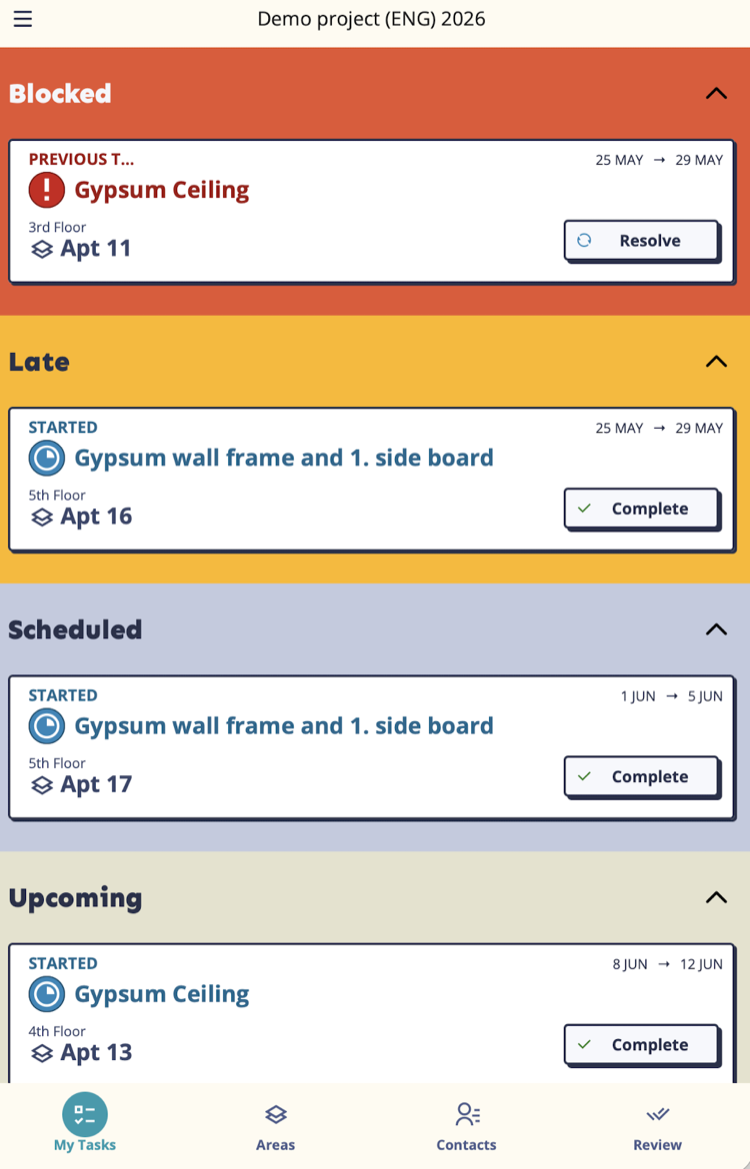
If you see “You’re not on a team yet”, contact your foreman — you need to be added to a team before your tasks appear.
Step 5 — Start a task
Tap any task to open its detail screen. You’ll see:
- What needs to be done (description and any notes)
- Which space you’re working in
- When it’s due
- Any warnings (e.g. a previous task in the same space isn’t done yet)
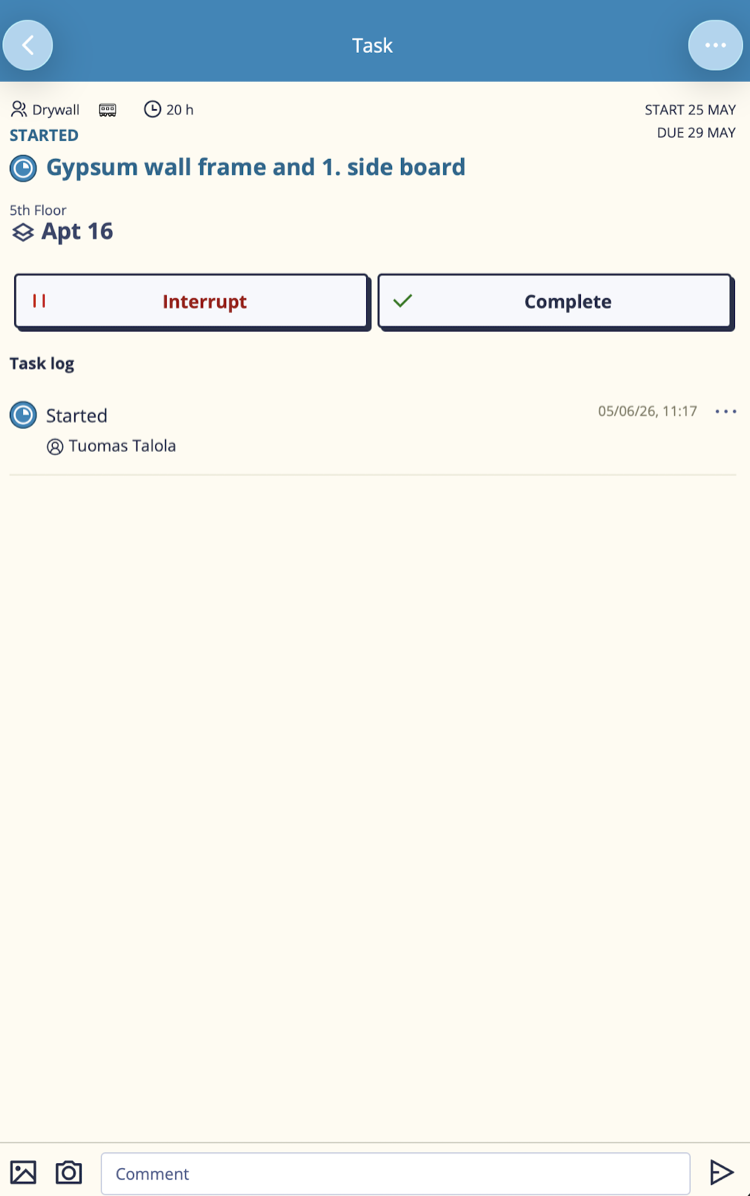
When you’re ready to begin, tap Start. This records when work began.
Step 6 — Complete a task
When the work is done, open the task and tap Complete.
If there’s a checklist, you need to check off every item before the Complete button becomes active. Work through the list as you go.
After tapping Complete, the task moves to your Completed list. If your project uses quality verification, it goes to Ready and waits for your foreman to check it.
Step 7 — Report a problem (Interrupt)
If you can’t continue a task — materials aren’t there, the previous trade hasn’t finished, the space isn’t ready — tap Interrupt instead of leaving the task without an update.
- Select the reason:
- Materials — materials haven’t arrived
- Plans — plans are missing or unclear
- Equipments — tools or machinery not available
- Supplies — consumables missing
- Space not available — the space is physically inaccessible
- Space not clean — previous work left the space unusable
- Previous todo — the previous task in this space isn’t done
- Other — anything else
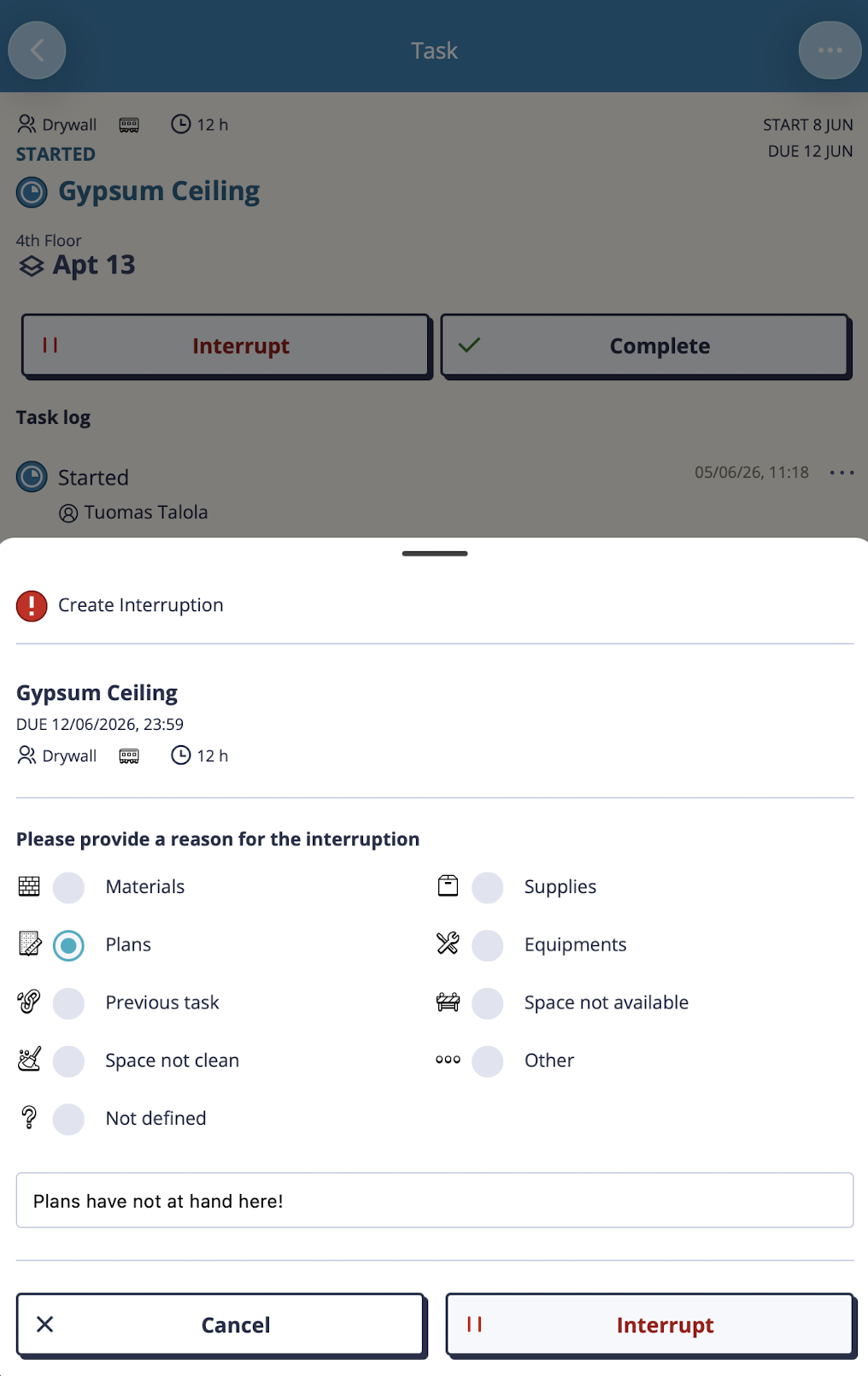
- Add a comment to explain the situation to your foreman
The interruption is logged immediately. Your foreman will see it on the dashboard and can arrange a fix.
When the problem is sorted, open the task again and tap Continue to resume.
Step 8 — Skip a task (if it doesn’t apply)
Sometimes a task is scheduled for your space but doesn’t actually apply — for example, a task for a feature that doesn’t exist in this particular apartment. Tap Skip to mark it as intentionally not done. This keeps the schedule accurate.
Navigate the building — Areas
Tap Areas at the bottom to browse the building structure — floors, apartments, rooms. Tap into any space to see what work is planned or active there.
You can also scan the QR code posted in a physical space to jump directly to it in the app.
Answer the Pulse question
Occasionally a short question appears when you open My Tasks. This is the Project Pulse — an anonymous survey about how the schedule is working from your perspective.
Drag the slider to answer and tap Submit, or tap Skip if you’d rather not answer. Answers are completely anonymous and go to the project dashboard — your name is never attached to them.
Tips
- Keep tasks updated in real time — the foreman’s view updates immediately when you make changes. This helps prevent problems from building up unnoticed.
- If a task detail says Late, it means the due date has passed. Prioritize these.
- If you see a warning at the top of a task about a previous task not being done, let your foreman know before you start — it’s better to flag it early than to discover a problem mid-work.
- Use Contacts (bottom tab) to call, message, or email teammates directly from the app.
→ Questions? Contact your foreman or email support@mestamaster.fi